What Is a Browser Profile and How Does It Work? The Complete Guide
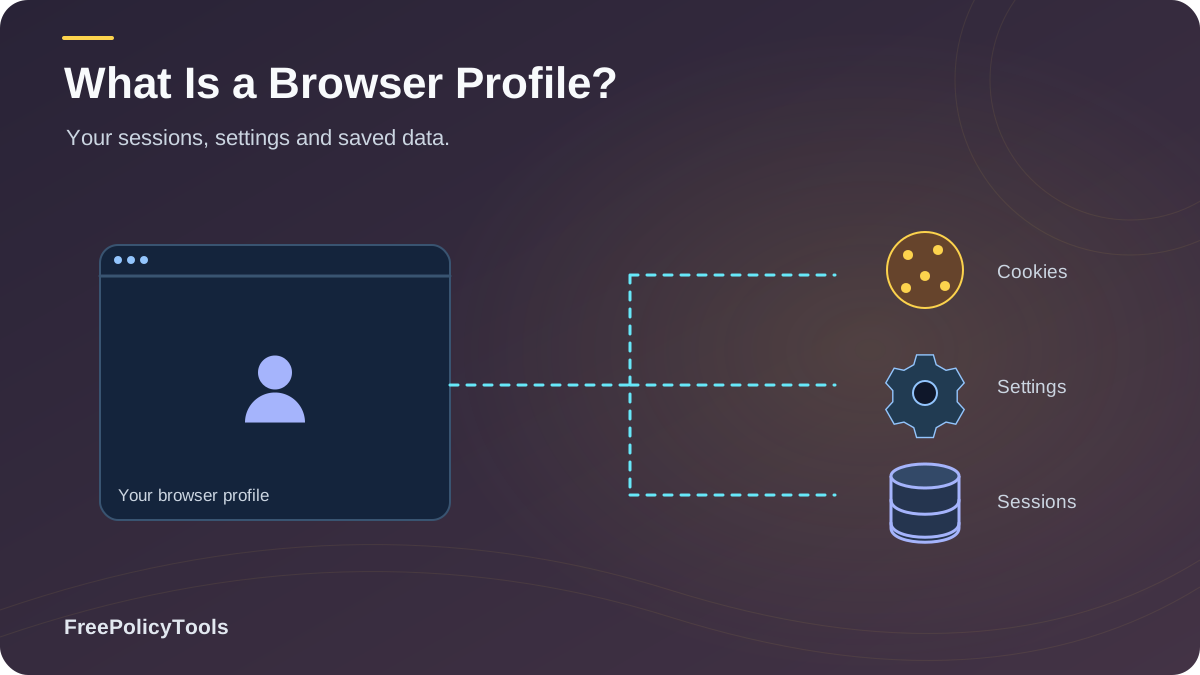
Every time you open your browser, it silently loads a browser profile — a personal workspace containing your cookies, history, passwords, extensions, and settings. It is the reason Chrome "remembers" you, the reason two people can share one computer without sharing one internet identity, and the foundation of modern privacy techniques like browser profile isolation. Yet most users have never opened the profile manager, let alone understood what lives inside it. Chrome’s profile documentation explains how separate profiles keep bookmarks, history, passwords, and other settings separate.
This guide explains exactly what a browser profile is, what data it stores, how the browser uses it under the hood, and — critically — what profiles can and cannot do for your privacy. Along the way, you will see why profiles alone do not stop browser fingerprinting, and when it makes sense to graduate to anti-detect browsers that treat every profile as a fully separate digital identity.
TL;DR — Browser Profiles in 30 Seconds
- A browser profile is a self-contained workspace: cookies, history, passwords, extensions, cache, and settings stored in one folder.
- One browser can run many profiles, each with its own logins and site data — like separate user accounts for your browsing.
- Profiles isolate stored state (cookies, history) but NOT your fingerprint or IP address — sites can still link profiles together.
- Profiles can bloat to gigabytes or even tens of gigabytes, mostly cache and site databases.
- For true identity separation, professionals use anti-detect browsers that give each profile its own fingerprint and proxy.
What Is a Browser Profile? The Simple Definition
A browser profile is a dedicated folder on your device that stores everything the browser knows about "you": your cookies, saved passwords, browsing history, bookmarks, installed extensions, cached files, and personal settings. The browser itself is just the engine; the profile is the driver's seat. When you launch the browser, it reads a profile folder and reconstructs your entire browsing identity from it.
The Apartment Analogy
Think of the browser as an apartment building and each profile as a separate apartment. The building (browser) provides the plumbing, electricity, and structure — the rendering engine, security sandbox, and network stack. Each apartment (profile) has its own furniture, mail, and residents — its own cookies, logins, history, and extensions. Same building, completely separate lives inside.
A Folder on Disk
Physically, a profile is a directory of databases and files the browser reads at startup.
A Local "User Account"
It lets several people — or several versions of you — share one browser without sharing data.
A Web Identity
To websites, each profile appears as a distinct visitor with its own cookies and logged-in sessions.
By default, every browser creates one profile ("Default" or "Profile 1") the first time you run it. But Chrome, Edge, Firefox, and anti-detect browsers all support multiple profiles — a feature that has become one of the most practical tools in everyday privacy. Understanding the difference between browser privacy and browser security helps explain why: profiles mainly control what stored data sites can see, which is a privacy mechanism, not a security boundary.
Anatomy of a Profile: What Data Lives Inside
A mature profile is surprisingly heavy. Real-world Chrome profiles routinely reach several gigabytes, and sometimes tens of gigabytes, with cached media and site databases making up the bulk of the weight. Here is what a profile actually contains:
Cookies & Site Storage
Session tokens, tracking IDs, localStorage and IndexedDB databases. The core of how sites remember you — see browser cookies explained and cookies vs local storage vs fingerprinting.
History & Search Records
Every visited URL with timestamps, download history, and form autofill entries stored in local databases.
Passwords & Autofill
Saved credentials, addresses, and payment autofill data, usually encrypted with a key tied to your OS account.
Extensions & Their Data
Installed add-ons plus their private storage. Worth auditing regularly — malicious browser extensions abuse this layer.
Cache & Media Files
Copies of images, scripts, and videos that speed up revisits. The single largest slice of profile storage.
Settings & Permissions
Homepage, search engine, content settings, and per-site permissions — camera, mic, location, notifications (see browser permissions explained).
Where Profiles Live on Disk
CHROME / EDGE
Windows: C:\Users\[You]\AppData\Local\
         Google\Chrome\User Data\
macOS:   ~/Library/Application Support/
         Google/Chrome/
Linux:   ~/.config/google-chrome/

FIREFOX
Windows: C:\Users\[You]\AppData\Roaming\
         Mozilla\Firefox\Profiles\
macOS:   ~/Library/Application Support/
         Firefox/Profiles/
Linux:   ~/.mozilla/firefox/

Each "Profile N" subfolder = one identity.
Key Stat: The average internet user manages 70–80 passwords, around 1.9 email accounts, and roughly 6–7 social networks every month. Almost all of those identities terminate in a browser profile — which is why one careless profile can become a map of your entire digital life.
How Browser Profiles Work Under the Hood
Mechanically, the process is simple and elegant. The browser binary (the program you click) contains no personal data at all. At launch, it is pointed at a profile directory — either the default one or whichever profile you selected — and then:
The Profile Lifecycle
- Load: The browser opens the profile's databases (history, cookies, preferences) and mounts them into memory.
- Restore: Extensions, settings, and optionally tabs are re-initialized from that profile's data only.
- Run: Every cookie set, site visited, or password saved during the session is written back to that same folder.
- Separate: A second profile opened in another window runs in parallel with its own storage — sites see two unrelated visitors.
- Sync (optional): If you sign in with a browser account, the profile's data can be encrypted and synced across devices — a separate layer on top of the local profile.
Two subtleties matter for privacy. First, profiles share the browser's network stack and rendering engine, so they present nearly identical fingerprinting signals — same screen resolution, same fonts, same canvas output. Second, profiles are a local boundary, not a legal or security boundary: anyone with access to your unlocked OS account can usually read the profile folders. They separate identities from websites, not from forensic access to your machine.
Profile vs Window vs Incognito vs Separate Browser
Users constantly confuse profiles with incognito windows. They are different mechanisms: incognito mode is a temporary, amnesiac session that forgets everything when closed, while a profile is a persistent identity that remembers everything — just separately from other profiles. The full comparison:
| Feature | Normal Window | Incognito Window | Separate Profile | Separate Browser / VM |
|---|---|---|---|---|
| Persists after closing | Yes | No | Yes | Yes |
| Own cookies & logins | Shares default | Temporary only | Yes | Yes |
| Own extensions set | Shared | Disabled by default | Yes | Yes |
| Hides you from websites | No | No | Partially | Partially |
| Own fingerprint | No | No | No | Slightly |
| Best for | Daily use | Local privacy | Identity separation | Stronger separation |
Remember: Neither incognito nor profiles make you anonymous to the websites themselves. For that comparison, see anti-detect browser vs incognito mode and can you really browse anonymously?
Why Use Multiple Browser Profiles?
Multi-profile usage has grown from a developer trick into a mainstream productivity and privacy habit — over half of power users now run at least two profiles. The most common motivations:
Work / Personal Split
Separate logins for corporate apps (Slack, Google Workspace, CRM) and personal accounts — no more constant sign-in/out, and work tracking stays in the work profile.
Multiple Business Accounts
Marketers, sellers, and agencies manage dozens of ad, marketplace, or social accounts. Each profile holds one account's session cleanly — the entry point to profiles as digital identities.
Privacy Separation
A "shopping" profile, a "research" profile, and a "personal" profile prevent cross-context tracking via shared cookies — a practical form of profile isolation.
Shared Devices & Testing
Family members keep separate histories and passwords on one machine; developers test sites with clean vs. logged-in states without extra hardware.
Profiles & Privacy: What They Do and Don't Hide
This is the section most guides skip. Profiles are excellent at stopping cookie-based cross-identity tracking — a tracker cookie stored in Profile A is simply not sent by Profile B. But websites have other linking mechanisms that ignore profile boundaries entirely, because those signals come from the shared browser engine and network, not from stored data.
What Profiles DO Isolate
- Cookies, localStorage, IndexedDB per identity
- Logged-in sessions and saved passwords
- History, bookmarks, and autofill data
- Extension sets and per-site permissions
What Profiles DO NOT Hide
- Browser fingerprint — identical across profiles in the same browser
- IP address & network location — see why changing your IP doesn't change your fingerprint (and vice versa)
- WebRTC leaks that expose your real IP
- Behavioral linking by advertising networks
The Fingerprint Problem
The EFF's Panopticlick research found a browser fingerprint to be unique among as many as 286,771 browsers. Because all profiles inside one browser emit the same canvas, font, screen, and hardware signals, a determined tracker can link your "work" and "personal" profiles instantly — no cookies required. A VPN does not fix this either, as explained in does a VPN change your browser fingerprint. Mitigation options are covered in can browser fingerprinting be prevented and how to check your browser fingerprint.
Scaling Separation: Profiles vs Separate Browsers vs VMs
When profile-level isolation is not enough, the next steps up the ladder are separate browsers and virtual machines. Each adds isolation — and cost. Separate browsers change some engine signals (Firefox vs Chrome fingerprints differ), while a virtual machine isolates the entire OS, at the price of gigabytes of RAM and slow workflows. The radar chart below summarizes the trade-offs.
Profiles
Best balance of convenience and cookie isolation. Weak against fingerprinting. Ideal for everyday context splitting.
Separate Browsers
Different engines = different fingerprints. Moderate overhead. Good for 2–3 strongly distinct identities.
Virtual Machines
Full OS isolation, strongest separation, heaviest resource cost. Overkill for most daily browsing.
Anti-Detect Browsers: Profiles as Digital Identities
An anti-detect browser takes the profile concept and supercharges it: every profile becomes a complete digital identity with its own spoofed fingerprint, its own proxy or network route, and its own cookie jar. This closes exactly the two gaps shown in the isolation chart — fingerprint and network — which is why anti-detect browsers really work for use cases where ordinary profiles fail: multi-accounting, ad verification, fraud-free QA testing, and high-stakes privacy separation. Compare the landscape via anti-detect vs VPN vs proxy and VPN vs proxy vs anti-detect browser, and check what anti-detect browsers can hide, whether sites can detect them, and whether they are safe and legal.
Recommended: Incogniton Anti-Detect Browser
Incogniton turns the humble browser profile into a managed fleet of digital identities — each with a consistent fingerprint, isolated storage, and optional proxy binding. It is the natural upgrade path once you outgrow ordinary profiles. See our roundups of the best anti-detect browsers and the cheapest anti-detect browsers.
- Unique fingerprint per profile
- Isolated cookies, cache & storage
- Per-profile proxy binding
- Free tier to get started
How to Create & Manage Profiles (Chrome, Edge, Firefox)
Google Chrome
- Click your avatar icon at the top right
- Choose "Add profile" (or the gear for management)
- Name it and pick an avatar
- Optionally sign in to sync — or skip for a clean local identity
Microsoft Edge
- Click the profile icon at the top right
- Select "Add profile"
- Choose profile type and name
- Configure separate sync per profile
Mozilla Firefox
- Open the menu and go to "Profiles" (or type about:profiles)
- Click "Create a New Profile"
- Name it and finish the wizard
- Launch it in a new browser instance
Management tips: Name profiles by purpose ("Work", "Shopping", "Research"), not by number. Pin each profile's window with a distinct theme color so you never cross-post a session. And prune: delete profiles you no longer use — dormant profiles still occupy gigabytes and still contain stale cookies and passwords.
Profile Hygiene Best Practices
PROFILE HYGIENE CHECKLIST
--------------------------
[ ] 1. One purpose per profile; name it accordingly
[ ] 2. Never log into your main identity from a "anonymous" profile
[ ] 3. Install extensions per-profile, least-privilege only
[ ] 4. Review site permissions in each profile quarterly
[ ] 5. Clear cache/cookies of idle profiles (they bloat to GBs)
[ ] 6. Delete unused profiles and their folders completely
[ ] 7. Use a VPN or proxy per identity where needed
[ ] 8. Check your fingerprint; upgrade to anti-detect if linking matters
[ ] 9. Enable DNS over HTTPS to protect all profiles' lookups
[ ] 10. Keep the browser updated — every profile shares the engine
Profiles sit inside your overall browser hygiene strategy. Pair them with the practices in how to secure your web browser, keep the shared engine patched per why browser updates matter for security, audit add-ons against malicious browser extensions, tighten grants with browser permissions explained, and encrypt name resolution via HTTPS, secure DNS & DNS over HTTPS. For the tracking side, start with how websites track you, browser cookies explained, cookies vs local storage vs fingerprinting, and WebRTC's effect on browser privacy.
Measure Before You Trust
After setting up your profiles, verify the separation: run a fingerprint scan from two profiles and compare results (how to check your browser fingerprint), and test for WebRTC leaks with your VPN on. If the fingerprints match, your profiles are cookie-separate but fingerprint-linked — exactly the gap anti-detect tooling was built to close.
Frequently Asked Questions
Is a browser profile the same as a browser account?
No. The profile is the local folder of data on your device; the browser account (e.g., a Google or Firefox account) is an optional cloud layer that can sync a profile across devices. You can have many profiles with no account at all, which is actually the more private configuration.
Can websites tell I switched profiles?
Websites cannot see your profile name or count, but they notice the effect: the new profile sends no cookies from the old one, so you appear as a new visitor. However, because both profiles share the same fingerprint, sophisticated trackers can infer the same device is behind both sessions.
Do browser profiles slow down my computer?
Each open profile consumes RAM like a separate browser instance, and dormant profiles consume disk — often gigabytes each, mostly cache. Closed profiles use no CPU/RAM; the cost is storage, which you can reclaim by clearing cache or deleting unused profiles.
Does deleting a profile delete my data from websites?
No. Deleting a profile removes local data (cookies, history, passwords) from your device. Servers still hold your account and their logs; you must delete or anonymize the account on the service side separately.
When should I move from profiles to an anti-detect browser?
When fingerprint-level linking becomes the threat — for example when managing multiple business accounts that must not be associated, or when your privacy model requires unlinkable identities. Anti-detect browsers add per-profile fingerprints and proxy binding that standard profiles cannot provide.
Related Resources
Conclusion
A browser profile is the unit of identity in your browser: a self-contained folder of cookies, history, passwords, extensions, and settings that the engine loads at startup. It is why one machine can host a work identity, a personal identity, and a research identity without them bleeding into each other's stored data — and why multi-profile workflows have grown from a niche trick to a mainstream habit, now used by a majority of power users.
But the honest picture matters: profiles isolate state, not signals. They stop cookie-based linking while leaving your fingerprint, IP, and behavior fully shareable across profiles — and with fingerprints unique among hundreds of thousands of browsers, that linkage is trivial for sophisticated trackers. Knowing exactly where profiles help and where they stop is the difference between real privacy and comfortable theater.
Key Takeaways
- • A profile = local folder of cookies, history, passwords, extensions, cache
- • Profiles can bloat to gigabytes; cache is ~46% of the weight
- • Profiles isolate stored data (90%+) but not fingerprint (15%) or IP (0%)
- • Incognito = temporary amnesia; profile = persistent separation
- • Anti-detect browsers extend profiles into full digital identities
Next Steps
- • Open your profile manager and name profiles by purpose
- • Delete unused profiles and reclaim gigabytes
- • Run the 10-point hygiene checklist above
- • Test fingerprint linking between your profiles
- • Evaluate anti-detect tooling if unlinkability matters
Ready to turn profiles into truly separate digital identities?
Try Incogniton's anti-detect browser — per-profile fingerprints, isolated storage, and proxy binding, with a free tier to start.