Browser Permissions Explained: What Websites Can Really Access
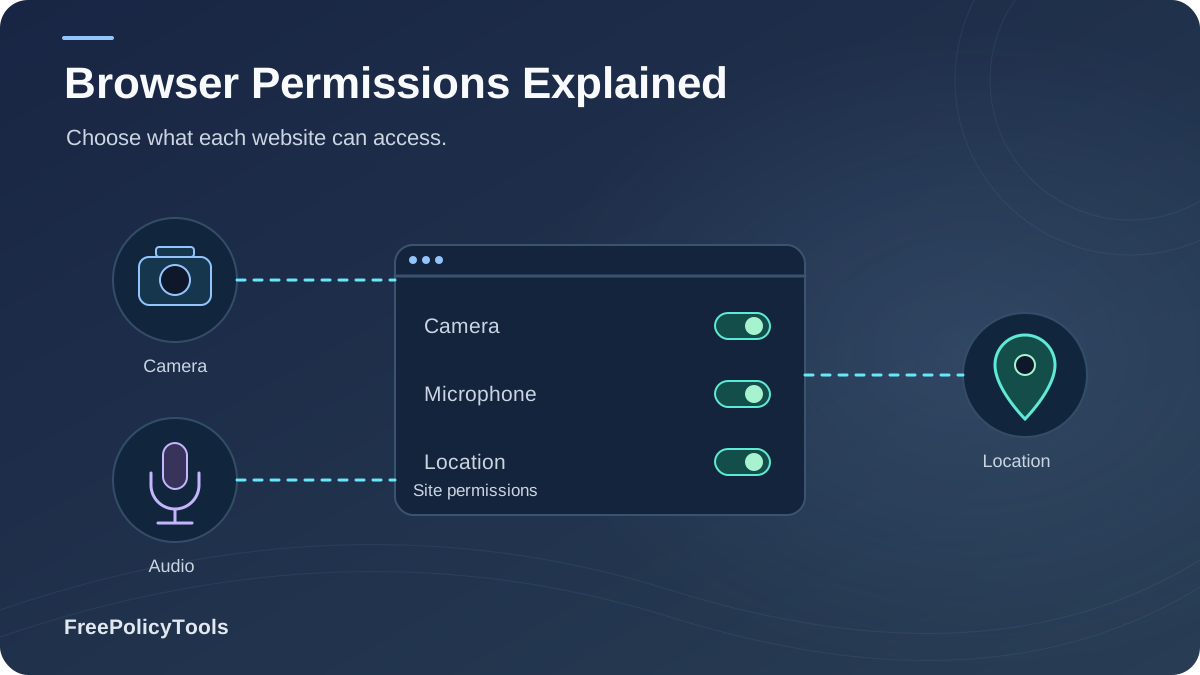
Every time a website asks to "know your location," "show notifications," or "use your camera," your browser is mediating a small but consequential privacy decision. Browser permissions are the gatekeepers between a webpage's code and your device's most sensitive capabilities — yet most users click "Allow" without a second thought. Understanding how this permission model works is one of the fastest ways to take back control of your personal data. MDN’s Permissions API documentation explains how permission states interact with secure contexts, permissions policies, and user decisions.
In this guide, we explain what browser permissions actually are, which data each one exposes, how attackers and trackers abuse them, and exactly how to manage or revoke them in Chrome, Firefox, Safari, Edge and Brave. Whether you're a privacy-conscious user or a website owner who wants to request access responsibly, you'll leave with a practical, 2026-ready playbook.
Quick Answer
Browser permissions are a security and privacy mechanism that requires websites to ask for your explicit approval before accessing sensitive device features (camera, microphone, location, notifications, clipboard, screen, and more). By default, websites can access nothing — each "Allow" you click is a deliberate expansion of a site's access to your data. The safest habit is default-deny with contextual granting: refuse everything upfront, and only allow a permission at the moment a feature you actually want requires it.
91%
of Americans feel they've lost control over how their personal data is collected (Pew Research Center)
41%
of users grant permission prompts immediately, without checking who is asking (Browser Privacy Attitudes Survey, 2025)
78%
of internet users aged 60+ have never reviewed their browser permission settings (Digital Privacy Habits Report, 2025)
What Are Browser Permissions: A Technical Explanation
Modern web pages run inside a sandbox: by default, the JavaScript on a website cannot touch your camera, microphone, GPS coordinates, clipboard, files, or push anything to your screen after you leave. Browser permissions are the controlled exceptions to this rule. When a site needs a sensitive capability, it must call a browser API (such as navigator.geolocation.getCurrentPosition() or Notification.requestPermission()), which triggers a prompt. Only a deliberate user action — clicking "Allow" — breaks the sandbox for that specific origin.
How the Permission Flow Works
- A website calls a protected API (e.g., requests your location).
- The browser checks the stored permission state for that origin.
- If no decision exists, the browser shows a prompt naming the site and the capability.
- You choose Allow or Block — the decision is stored per origin.
- The browser exposes the result to the page as
granted,denied, orpromptvia the W3C Permissions API.
Example PermissionStatus object:
{
name: "geolocation",
state: "granted", // 'granted' | 'denied' | 'prompt'
origin: "https://example.com",
requestedAt: "2026-02-14T09:12:43Z",
duration: "persistent" // or 'session-only'
}
Granted
The site may use the capability until you revoke it (or the session ends).
Prompt
No decision stored yet — the browser will ask you next time the site asks.
Denied
The site is blocked. It can still detect the denial via the Permissions API.
Two properties make permissions especially powerful as a privacy control. First, they are origin-scoped: allowing location for your bank never grants it to any other site. Second, they are revocable: every major browser lets you withdraw a permission at any time from the padlock menu or settings. Because permissions sit exactly at the intersection of browser privacy and browser security, they protect you both from malicious code and from legitimate sites that over-collect data.
A Brief History of the Web's Permission Model
The permission concept entered the web with geolocation around 2009, followed by notifications, camera/microphone access for WebRTC (2013+), and later clipboard, screen capture, Bluetooth and sensor APIs. The W3C Permissions API standardized how sites query and request these capabilities. In 2020, Chrome shipped a "quieter" notification permission UI after telemetry showed that users almost always denied intrusive prompts — a clear admission that prompt design directly shapes privacy outcomes.
The Main Types of Browser Permissions
Not all permissions are created equal. Handing a site your precise GPS coordinates is not the same as letting it paste text into a form. Below is the practical taxonomy you need to know, with the privacy impact of each capability.
Sensors & Hardware
Location, camera, microphone, motion & orientation sensors.
Your Data
Clipboard, files, contacts, photos and media libraries.
Communication & Device
Notifications, screen sharing, Bluetooth, background sync.
| Permission | What a Site Can Do | Legitimate Uses | Privacy Risk |
|---|---|---|---|
| Geolocation | Read precise GPS / Wi-Fi position | Maps, delivery, local search | High |
| Camera | Capture live video & images | Video calls, QR scanning | High |
| Microphone | Record ambient audio | Calls, voice dictation | High |
| Notifications | Push alerts after you leave the site | Order updates, reminders | Medium (abuse: High) |
| Clipboard | Read & write copied text | Paste buttons, wallet guards | Medium–High |
| Screen sharing | View your screen / windows | Presentations, remote support | High |
| Bluetooth | Discover & talk to nearby devices | Peripherals, beacons | Medium |
| Motion sensors | Accelerometer & gyroscope data | Games, AR features | Low–Medium (fingerprinting) |
Key Stat: Mobile users are consistently more permission-generous than desktop users — 62% grant location access on mobile versus 45% on desktop (Web Permissions Observatory, Global Permissions Report 2025). Touch-native OS habits of tapping "Allow while using the app" carry over into the mobile browser.
How Permission Prompts Work (and Why Design Matters)
The prompt is the entire permission model's single point of failure: it delegates a complex privacy decision to a split-second click. Research on prompt behavior consistently finds that a large share of users grant access reflexively, while another share suffers from "prompt fatigue" and denies or ignores everything — including requests that would genuinely help them.
Why Users Over-Grant
- Prompts appear before any context explains why access is needed
- Dark patterns: "Allow to continue," fake system dialogs, repeated re-prompting
- Mobile OS habits condition users to tap "Allow"
- The consequences of granting are invisible — no dashboard shows what data flowed
Sources: Web Permissions Observatory, Global Permissions Report 2025 (n = 12,400 observed sessions); Browser Privacy Attitudes Survey 2025 (n = 4,200 respondents).
The Prompt Economy Is Growing
The share of websites triggering at least one permission prompt on a first visit has more than tripled since 2019, from ~3% to over 11% of measured sites — driven overwhelmingly by notification requests used to build re-engagement and ad channels (State of the Web Permissions Report, 2025). More prompts means more fatigue, and fatigue means more accidental grants.
Privacy & Security Risks of Over-Granting Permissions
A permission is only as trustworthy as the site — and every third-party script — behind it. When you click "Allow," you're not trusting a single page; you're trusting its entire supply chain of ads, analytics and embedded widgets. These are the most common abuse patterns observed in the wild, many of which overlap with the techniques described in our guide on how websites track you.
High-Impact Abuse Patterns
- Notification spam & malvertising: "Allow notifications to verify you're human" subscribes you to scam ad pushes that persist after you leave the site.
- Location profiling: repeated precise location reads build a movement profile worth far more than the feature you unlocked.
- Clipboard sniffing: malicious pages watch for crypto wallet addresses and swap them during paste operations.
- Screen-share support scams: fake "virus alerts" trick victims into sharing their screen, exposing banking sessions and passwords.
- Camera/mic social engineering: "video verification" pages record users for blackmail or identity fraud.
The Quieter Risks
- Third-party leakage: a granted permission can feed data to embedded ad-tech you never see.
- Permission-state probing: sites query granted/denied states to build behavioral profiles or retaliate with "consent walls."
- Extension abuse: malicious browser extensions can inherit broad permissions and silently abuse site-level grants.
- Stale grants: permissions granted years ago keep flowing data to sites you no longer use or trust.
Source: Digital Privacy Habits Report, 2025 — share of respondents who have never opened their browser's permission settings.
Red Flags: Deny Immediately When…
- A prompt appears within seconds of landing, before you've interacted with anything.
- The permission is unrelated to the site's function (a recipe blog asking for your location).
- Access is framed as mandatory to "verify," "continue," or "watch" content.
- The site re-prompts repeatedly after you denied (nagging is a dark pattern).
- An in-page overlay mimics a system dialog to trick you into clicking Allow.
Permissions & Browser Fingerprinting: The Hidden Link
Most users think of permissions as an access-control feature. Fewer realize they are also a browser fingerprinting vector. The Permissions API lets any script enumerate which capabilities you've granted or denied — and that pattern of decisions is surprisingly unique. Combined with sensor APIs (motion, orientation, screen characteristics), permission states add entropy that helps trackers recognize your device across sites, even without a single cookie.
Composite risk scores, FreePolicyTools analysis 2026 — higher values indicate greater exposure on that dimension.
Why Permissions Feed Fingerprints
- Grant/deny combinations differ per user and are stable over time.
- Sensor streams (gyroscope, accelerometer) expose hardware-level signatures.
- Unlike cookies, fingerprint signals can't be "cleared" from a settings menu.
What This Means for Anonymity
If your goal is genuine anonymity, permissions are only one layer of a much larger surface. Our analysis of whether you can really browse anonymously shows that consistent identity isolation — not one-off tweaks — is what actually defeats fingerprinting.
Tools like Incogniton create isolated browser profiles, each with its own permission set and fingerprint, so a grant in one identity never leaks into another.
How to Manage & Revoke Permissions in Every Browser
Revoking a permission takes seconds in every major browser — the hard part is remembering to look. Use this reference table, then adopt the monthly audit habit below.
| Browser | Where to Manage Permissions | Power-User Tip |
|---|---|---|
| Chrome / Edge | Padlock icon → 'Site settings', or Settings → Privacy & security → Site Settings | Open 'View permissions and data stored across sites' and purge stale grants quarterly. |
| Firefox | Lock icon → permission controls, or Settings → Privacy & Security → Permissions | Enable 'Block new requests asking to allow notifications' globally to stop prompt spam. |
| Safari | Safari → Settings → Websites tab (per-site camera, location, notifications…) | Set 'When visiting other websites' to Deny for every capability you don't use daily. |
| Brave | Shields / padlock → Site settings (brave://settings/content) | Brave's defaults already suppress many prompts — keep Shields up for maximum quiet. |
| Mobile (iOS/Android) | System Settings → browser app → Permissions, plus in-browser site settings | Prefer 'Ask every time' / 'While using' over permanent grants on mobile OSes. |
The 5-Minute Monthly Permission Audit
- Open your browser's site settings hub ( search "site settings" in the address bar menu).
- Sort by sensitive capabilities — location, camera, microphone, notifications first.
- Revoke everything you don't recognize or no longer actively use.
- Downgrade persistent grants to session-only where the browser offers it.
- Reset defaults after installing new extensions or visiting high-risk sites.
Everyday User Habits
- Default-deny: let the feature you want trigger the prompt, not the page load.
- Use private windows for one-off tasks — most permissions there are session-only and reset on close (here's what incognito mode actually does).
- Watch for the camera/mic indicator dots on your OS — they're your last-line alarm.
- Keep the browser updated; permission abuses are routinely closed in security releases, as covered in how to secure your web browser.
High-Risk Workflow Habits
- Never grant screen share to unsolicited "support" callers — hang up and verify independently.
- Keep clipboard permission off for random web tools when handling crypto addresses or passwords.
- Separate identities: use isolated browser profiles (e.g., Incogniton) so work, personal and high-risk browsing never share one permission pool.
- Treat "Allow to continue" pages as hostile — legitimate services rarely hold content hostage.
For Website Owners: Requesting Permissions Responsibly
If you run a website, permission prompts are a trust transaction. Browsers now actively shame and throttle sites with high denial rates — Chrome suppresses notification prompts from origins users frequently block. Responsible design isn't just ethical; it's measurable deliverability.
Do
- Explain before asking: show an in-page primer ("We'd like your location to show nearby stores") before triggering the native prompt.
- Request in context: ask at the moment the feature is invoked, never on page load.
- Honor denial gracefully: provide fallbacks (manual city entry, email instead of push).
- Document everything in your privacy/cookie policy — and keep it current with a privacy policy generator.
Don't
- Gate content behind unrelated permissions ("Allow notifications to read this article").
- Re-prompt users who denied — browsers count this against you.
- Style in-page overlays to look like OS dialogs.
- Request "just in case" — every unused grant is liability under GDPR-style regimes.
Compliance note: Under GDPR and the ePrivacy Directive, permission-gated tracking (e.g., precise location for ad personalization) requires freely given, specific and informed consent — a dark-pattern prompt produces invalid consent and exposes you to the same enforcement risk as a non-compliant cookie banner.
Frequently Asked Questions
Can a website access my camera or microphone without permission?
Not through the browser itself. Camera and microphone access is always mediated by a permission prompt, and modern operating systems show an indicator dot when they're active. The realistic attack routes are compromised browsers, malicious extensions with broad rights, or social engineering that tricks you into clicking Allow — which is why extension hygiene and prompt skepticism matter so much.
Do websites know when I deny a permission?
Yes. The Permissions API exposes the current state (granted, denied, or prompt) to the page, so a site can detect a denial and may show instructions or a 'consent wall.' Denial detection is also one of the signals that can contribute to a browser fingerprint, since your pattern of decisions is relatively unique.
Are my permissions saved in incognito / private mode?
Generally no — private windows start with a clean slate and discard permission grants when the session closes, which makes them ideal for one-off tasks. But private mode does not hide your fingerprint or make you anonymous; see our breakdown of what incognito mode actually does for the full picture.
Which browser permission is abused the most?
Notifications, by a wide margin. Push notification permission powers entire spam and malvertising economies because alerts persist after you leave the site and can be triggered remotely. Geolocation is the second most abused due to the advertising value of movement data, and clipboard access is a favorite of crypto-drainer scripts.
Should I block all permissions globally?
Global blocking is safe but inconvenient — maps, video calls and uploads all degrade. The pragmatic sweet spot is default-deny with contextual granting: keep everything blocked at the browser level, and allow capabilities only at the moment a trusted site needs them for a feature you're actively using. Revoke afterwards if the site isn't part of your regular routine.
How often should I audit my browser permissions?
Every 3 months is a good cadence, plus immediately after installing a new extension, after a browser reset, or after any site that made you uncomfortable. The audit itself takes about five minutes using the site-settings hub in your browser.
Related Resources
Conclusion
Browser permissions are one of the few privacy controls where the web gives you a genuine, per-site veto — and one of the most routinely squandered. The model only works if the person clicking "Allow" understands what they're handing over. Now you do: precise location builds movement profiles, notifications power spam economies, clipboard access feeds crypto theft, and the pattern of your decisions even sharpens your fingerprint.
The fix is not paranoia; it's process. Default-deny, grant in context, revoke on schedule, and isolate high-risk identities in separate profiles. Five minutes of auditing a quarter eliminates the vast majority of exposure that 78% of users never even look at.
Key Takeaways
- • Websites can access nothing sensitive until you explicitly allow it
- • 41% of users grant prompts immediately — slow down and check the origin
- • Notifications are the #1 abused permission; geolocation is #2
- • Permission states are enumerable and feed browser fingerprinting
- • A 5-minute quarterly audit removes most stale-grant exposure
Next Steps
- • Run your first permission audit today using the browser table above
- • Switch notification defaults to block in every browser you own
- • Adopt session-only grants for sensitive capabilities
- • Isolate risky workflows with separate browser profiles
- • Website owner? Rewrite your prompts with explain-before-ask UX
Want a clean, isolated browsing identity with its own permission footprint?
Use Incogniton to manage multiple browser profiles with independent fingerprints and permissions — ideal for work, research and high-risk browsing.