How to Secure Your Web Browser: A Practical Privacy and Security Checklist
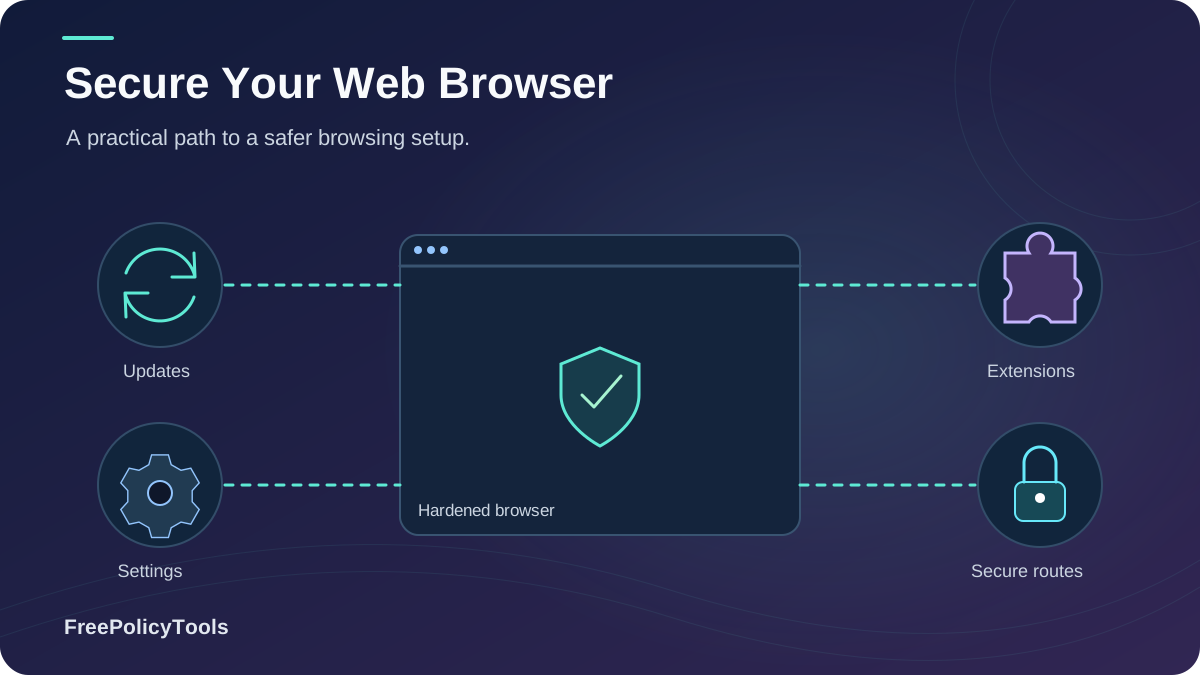
Your browser is the single piece of software you use more than any other — and it has become the internet's #1 attack surface. The Anti-Phishing Working Group (APWG) recorded a record 4.8 million phishing attacks in 2024, almost all of them delivered through a browser, while security researchers have documented malicious extension campaigns with a combined 75 million installs. Meanwhile, on the privacy side, the EFF's landmark fingerprinting study found that only 1 in 286,777 browsers shares its fingerprint with another — meaning a default browser makes you uniquely identifiable.
The good news: a few dozen minutes of hardening closes most of these gaps. This guide is a practical, prioritized checklist — from one-click settings to professional-grade identity isolation with tools like Incogniton anti-detect browser — that works whether you're an everyday user, a privacy enthusiast, or someone managing multiple online accounts.
Quick Answer (TL;DR)
To secure your web browser: (1) enable automatic updates, (2) switch on built-in tracking protection and HTTPS-Only mode, (3) delete unused extensions and audit permissions, (4) block third-party cookies and enable DNS-over-HTTPS, (5) control WebRTC leaks, (6) isolate risky activity in separate profiles, and (7) use an anti-detect browser when you need multiple clean identities. Done together, these steps neutralize the vast majority of browser-borne malware, phishing, tracking, and fingerprinting threats.
- Time required: ~30 minutes for the full checklist.
- Cost: $0 for steps 1–6; paid tools only for professional multi-accounting.
- Biggest wins: auto-updates, extension hygiene, and identity isolation.
Why Your Browser Is the #1 Attack Surface
Everything you do online — email, banking, shopping, work apps — ultimately renders inside one program: your web browser. That makes it the perfect convergence point for attackers. Browser-based phishing attacks increased 198% in a single year (Menlo Security), and in the last 12 months alone Menlo detected more than 752,500 browser-based phishing attacks, a ~140% year-over-year jump. Worse, their 2026 Browser Threat Report found that 1 in 5 enterprise phishing attacks goes completely undetected by the security tools built to stop them.
The Four Threat Families Your Browser Faces
- Exploits & malware: drive-by downloads and exploit-kit pages targeting unpatched browser engines.
- Phishing & session theft: fake login pages and AiTM (adversary-in-the-middle) kits that hijack authenticated sessions — 1 in 3 highly evasive threats now originate from sites already classified as "safe".
- Malicious extensions: one study estimated ~280 million Chrome users have unknowingly installed dangerous extensions; Avast uncovered 32 malicious extensions with 75 million combined installs.
- Tracking & fingerprinting: invisible profiling that follows you across sites, devices, and even VPNs.
Because Chrome alone holds roughly 68% of global browser market share (StatCounter), attackers overwhelmingly target it — but every engine on the chart above needs the same hardening playbook. The checklist that follows is browser-agnostic, with notes for Chrome, Firefox, Edge, Safari, and Brave where settings differ.
Browser Security vs. Browser Privacy: Know the Difference
A secure browser isn't automatically a private one, and vice versa. Security stops other people from attacking you — malware, exploits, phishing. Privacy stops companies and trackers from observing you — cookies, fingerprinting, IP exposure. A browser can be fully patched against exploits yet still broadcast your identity to hundreds of ad networks. Understanding this split is essential, which is why we wrote a dedicated comparison of browser privacy vs. browser security. This checklist deliberately hardens both layers — and if your goal is true anonymity, also read can you really browse anonymously before you finish.
Security Goals (Stop Attacks)
- Patched engine, no known exploitable bugs
- Sandboxed tabs and processes
- Phishing & malware site blocking
- Trusted extensions only
Privacy Goals (Stop Observation)
- Trackers & third-party cookies blocked
- Fingerprinting surface minimized
- Real IP & WebRTC leaks controlled
- Identities & sessions isolated
Checklist #1: Keep the Browser Engine Updated
Every browser engine ships security fixes on a rolling cadence — Chrome roughly every 4 weeks, Firefox every 4 weeks, Safari with each OS release. Attackers reverse-engineer each patch and target users who lag behind, so auto-updates are the single highest-impact setting on this list. Our deep dive on why browser updates matter for security covers the exploit timeline in detail; here is the actionable version:
Update Actions (Do These Now)
- Chrome/Edge: Settings → About → confirm "auto-update enabled"; restart to apply pending patches.
- Firefox: Settings → General → "Automatically install updates".
- Safari: System Settings → Software Update → enable automatic OS and Safari updates.
- Mobile: enable auto-updates in the Play Store / App Store — mobile browsers are frequently forgotten.
- Extensions & plugins: update these too; a patched browser with a vulnerable extension is still vulnerable.
Key Stat: Menlo Security's research shows 20% of browser-borne attacks are specifically engineered to evade network security controls — meaning the browser itself (its patch level and sandbox) is your last line of defense.
Checklist #2: Harden Core Privacy & Security Settings
Modern browsers ship with powerful built-in protections that are frequently left at weak defaults. Spend ten minutes on this section — it removes the bulk of passive tracking and several active attack paths. If any setting is unfamiliar, our browser permissions explainer shows exactly what each permission grants a site. MDN’s Permissions API documentation explains how permission states interact with secure contexts, permissions policies, and user decisions.
| Setting | What It Does | Where to Find It | Priority |
|---|---|---|---|
| Tracking protection: Strict / Enhanced | Blocks known trackers, fingerprinters, cryptominers | Firefox: Privacy & Security; Chrome: Ad privacy; Brave: Shields | Critical |
| Block third-party cookies | Stops cross-site tracking identifiers | Settings → Privacy → Cookies (all major browsers) | Critical |
| HTTPS-Only / Always-use-secure mode | Forces encrypted connections; warns on HTTP | Chrome: Security → Always use secure connections; Firefox: HTTPS-Only Mode | Critical |
| Safe Browsing / phishing protection | Warns on known malicious & phishing sites | Chrome/Edge: Security; Firefox: Deceptive content blocking | High |
| Site permissions: default-deny | Camera, mic, location, notifications require per-site approval | Settings → Privacy → Site Settings / Permissions | High |
| Disable background sync & idle detection | Stops sites from running after you leave | Site Settings → Additional permissions | Medium |
| Clear data on close (optional profile) | Wipes cookies/storage for a 'burner' profile | Profile-specific privacy settings | Medium |
Know What You're Blocking
Third-party cookies remain one of the most common tracking vectors — understand exactly how they work in browser cookies explained, and how they compare with local storage and fingerprinting in cookies vs. local storage vs. fingerprinting. Blocking them breaks very few legitimate sites; the rare site that complains can be granted a per-site exception.
Checklist #3: Audit Extensions Ruthlessly
Extensions run with extraordinary privileges: they can read and modify every page you visit. The ecosystem reflects that risk — Avast uncovered 32 malicious extensions with 75 million combined installs on the Chrome Web Store, Kaspersky flagged 57 suspicious extensions with six million installs, and Field Effect documented 33 malicious extensions installed by over 2.6 million users, some abused for up to 18 months before discovery. One academic-style estimate put the number of Chrome users with a dangerous extension at roughly 280 million.
The 5-Minute Extension Audit
- Inventory: open your extensions page and count them. Most users find 5–15; anything you don't recognize gets removed immediately.
- Purge the unused: if you haven't used it in 30 days, uninstall it. Dormant extensions are top targets for "update-jacking" (a sold or compromised extension pushed with malicious code).
- Check permissions: "Read and change all your data on all websites" should be reserved for genuinely necessary tools (password managers, ad blockers).
- Verify the publisher: official website, real support channel, recent reviews. Beware of clones with misspelled names.
- Prefer open source: auditable code (uBlock Origin, Bitwarden, HTTPS Everywhere successors) dramatically lowers supply-chain risk.
Deep dive: our full guide on malicious browser extensions covers the update-jacking supply chain, red-flag checklists, and safe alternatives for the most-abused extension categories.
Checklist #4: Block Trackers & Reduce Your Fingerprint
Even with malware stopped, a default browser happily reports your behavior to dozens of parties per page. Websites track you with cookies, pixels, session replay, and — most persistently — browser fingerprinting, which the EFF's Panopticlick research showed to be startlingly precise: only 1 in 286,777 browsers shared a fingerprint with another in their sample, and 94.2% of browsers with Flash or Java were unique.
Anti-Tracking Actions
- Enable strict tracking protection (or install a reputable blocker like uBlock Origin).
- Block third-party cookies; periodically clear first-party storage.
- Limit fingerprint entropy: avoid exotic font packs, unusual window sizes, and rare extension stacks — see types of browser fingerprinting.
- Test yourself: run a browser fingerprint check before and after hardening to measure the difference.
- Understand the ad side: how advertising networks track browsers explains who buys the data you're leaking.
Reality check: complete fingerprint prevention is hard — read can browser fingerprinting be prevented for what's realistically achievable. The goal is to shrink your uniqueness and keep your identities separate, not to reach theoretical perfection.
Checklist #5: Secure the Network Layer (HTTPS, DNS, WebRTC)
Your browser's network stack leaks more than most people realize: unencrypted HTTP traffic, plaintext DNS queries, and — via WebRTC — your real IP address even behind a VPN. Close all three:
1. Force HTTPS
Enable HTTPS-Only mode so the browser upgrades or blocks insecure connections.
2. Encrypt DNS
Turn on DNS-over-HTTPS so your ISP and network snoopers can't read your lookups.
3. Control WebRTC
Block or spoof WebRTC so STUN requests can't expose your real or LAN IP.
Network-Layer Deep Dives
- HTTPS, secure DNS, and DNS-over-HTTPS — the full setup guide.
- What is WebRTC and how does it affect browser privacy — why the leak exists.
- What is a WebRTC leak — and how to test for one in 60 seconds.
- Does a VPN change your browser fingerprint? — spoiler: far less than you think.
VPN users: a VPN encrypts the tunnel but doesn't harden the browser. If you're deciding between tunneling tools and identity tools, compare them in VPN vs. proxy vs. anti-detect browser — and remember that changing your IP doesn't change your browser fingerprint.
Checklist #6: Isolate Identities & Sessions
Compartmentalization is a core security principle: when one context is compromised or tracked, the others stay clean. Start by understanding what your browser's built-in modes actually do — incognito mode only deletes local history after the session; it does not hide you from websites, trackers, or your ISP. Real isolation requires separate storage, cookies, and fingerprints — the territory of browser profiles.
Isolation Ladder (Good → Best)
- Private window: local-history hygiene only.
- Separate profiles: distinct cookies/storage per context (work, personal, shopping).
- Separate browsers: stronger separation of engine-level data.
- Virtual machines: maximum isolation, maximum friction.
Trade-offs analyzed in profiles vs. browsers vs. VMs.
Practical Profile Rules
- One profile per life context; never log into the "wrong" account inside it.
- A dedicated "burner" profile for downloads, one-time signups, and sketchy sites.
- Banking profile with zero extensions and strict cookies.
- Apply browser profile isolation discipline: separate passwords, emails, and payment methods per context.
Checklist #7: Go Pro — Anti-Detect Browsers for Multiple Identities
If you manage more than one online account — ad accounts, e-commerce stores, client work, QA environments — profiles alone eventually fail: the underlying engine still shares hardware-level signals. An anti-detect browser solves this by generating a complete, consistent digital identity per profile: spoofed fingerprint, isolated storage, per-profile proxy, and controlled WebRTC behavior. This is exactly what Incogniton was built for.
When an Anti-Detect Browser Is the Right Tool
- You run multiple ad, marketplace, or social accounts that must never link.
- You need per-profile proxies with matching fingerprints and timezones.
- You've been flagged or banned by fingerprint correlation before.
- You want team features: shared profiles, permissions, sync.
Not sure it's legitimate or effective? Read are anti-detect browsers safe and legal, do anti-detect browsers really work, and can websites detect anti-detect browsers. For comparisons, see anti-detect vs. incognito, anti-detect vs. VPN vs. proxy, what anti-detect browsers can hide, and our roundups of the best and cheapest anti-detect browsers — plus how anti-detect profiles map to digital identities.
Checklist #8: Safe Browsing Habits & Account Hygiene
Technology fails when habits fail — APWG's data shows phishing volumes staying near record highs quarter after quarter (971,181 attacks in Q1 2026 alone, up 13.8% quarter-over-quarter). Pair your hardened browser with these behaviors:
Credentials & Sessions
- Use a password manager; unique password per site.
- Enable 2FA (prefer app keys/passkeys over SMS).
- Log out of banking/payment sessions; don't save cards on shopping sites.
- Review active sessions quarterly; revoke unknown devices.
Phishing Defense in Practice
- Type critical URLs or use bookmarks; never trust links in emails/SMS.
- Check the domain, not the padlock — HTTPS only proves encryption.
- Treat urgency ("account suspended!") as a red flag; verify via official channels.
- On public Wi-Fi, assume hostile: use a reputable VPN and HTTPS-Only mode.
The Master Checklist at a Glance
Bookmark this table and work through it top to bottom. Total time for a typical user: about 30 minutes.
| # | Action | Threats It Neutralizes | Time | Impact |
|---|---|---|---|---|
| 1 | Enable browser & OS auto-updates | Exploits, drive-by malware | 2 min | Critical |
| 2 | Strict tracking protection + block 3rd-party cookies | Trackers, cross-site profiling | 3 min | Critical |
| 3 | Enable HTTPS-Only mode | Network snooping, SSL-stripping | 1 min | Critical |
| 4 | Enable DNS-over-HTTPS | DNS spying & hijacking | 2 min | High |
| 5 | Uninstall unused/risky extensions | Extension malware, data theft | 5 min | Critical |
| 6 | Default-deny site permissions | Camera/mic/location abuse | 3 min | High |
| 7 | Keep Safe Browsing / phishing protection on | Phishing, malware sites | 1 min | High |
| 8 | Control or spoof WebRTC | Real-IP leaks behind VPN | 3 min | High |
| 9 | Run a fingerprint & leak self-test | Unknown exposure | 5 min | Medium |
| 10 | Create separate profiles per context | Session linking, cross-context tracking | 5 min | High |
| 11 | Password manager + unique passwords + 2FA | Credential stuffing, account takeover | 10 min | Critical |
| 12 | Use anti-detect browser for multi-accounting | Fingerprint correlation, mass bans | 15 min | Critical (pros) |
| 13 | Quarterly re-audit (extensions, permissions, sessions) | Drift, update-jacking | 10 min | Medium |
Frequently Asked Questions
Which browser is the most secure and private by default?
Brave and Firefox (with strict settings) lead on default privacy; Chrome and Edge lead on sandbox maturity and update speed but trail on tracking defaults. The honest answer: any mainstream browser becomes dramatically safer after this checklist — configuration matters more than brand.
Do browser hardening settings break websites?
Occasionally. Strict tracking protection and third-party cookie blocking can affect embedded content, comment systems, or single sign-on flows. The fix is per-site exceptions for sites you trust — a 10-second adjustment that keeps protection everywhere else.
Is incognito mode enough to protect my privacy?
No. Incognito only prevents local history storage on your device. Websites, trackers, your ISP, and your network admin still see your activity, and your fingerprint is unchanged. For real separation, use isolated profiles or an anti-detect browser.
How often should I repeat this checklist?
Run the full audit quarterly, and immediately after: a browser major-version update, installing any new extension, a security incident on a service you use, or adding a new online account/identity.
Do I need both a VPN and a hardened browser?
They solve different problems. A VPN hides your IP and encrypts transit on hostile networks; a hardened browser stops exploits, trackers, and fingerprinting. Privacy-heavy users combine both — and add an anti-detect browser when managing multiple identities.
Will blocking trackers and fingerprinting make me more unique?
Poorly implemented spoofing can. That's why we recommend built-in protections (which normalize you toward a common standard) or professional anti-detect tools that generate coherent, realistic identities — not a pile of contradictory extensions.
Related Resources
Conclusion
Browser security and privacy are not products you buy — they're a configuration and a habit. The threat landscape makes the stakes clear: record phishing volumes (4.8 million attacks in 2024 per APWG), browser-phishing growth of 198% in a year (Menlo Security), malicious extension campaigns reaching tens of millions of installs, and fingerprints so unique that only 1 in 286,777 browsers shares yours (EFF).
The checklist in this guide closes those gaps in order of impact: patch relentlessly, shrink your tracking and fingerprint surface, encrypt the network layer, isolate your identities, and — when your work demands multiple clean identities — graduate to an anti-detect browser instead of improvising with incognito windows.
Key Takeaways
- • The browser is the #1 attack surface; 1 in 5 enterprise phish goes undetected
- • Auto-updates + extension hygiene stop the majority of real-world attacks
- • Default browsers are uniquely fingerprintable (1 in 286,777, EFF)
- • HTTPS-Only + DoH + WebRTC control seal the network layer
- • Isolation (profiles → anti-detect) is the final, decisive layer
Next Steps
- • Complete checklist items 1–8 today (~30 minutes)
- • Run a fingerprint & WebRTC leak self-test
- • Set a quarterly re-audit reminder
- • If multi-accounting: evaluate Incogniton
- • Share this checklist with your team or family
Want every identity as safe as your main one?
Incogniton anti-detect browser gives each profile its own fingerprint, cookies, proxy, and WebRTC behavior — the professional way to finish this checklist. Start with Incogniton today.