Why Browser Updates Matter for Security: A Comprehensive Guide
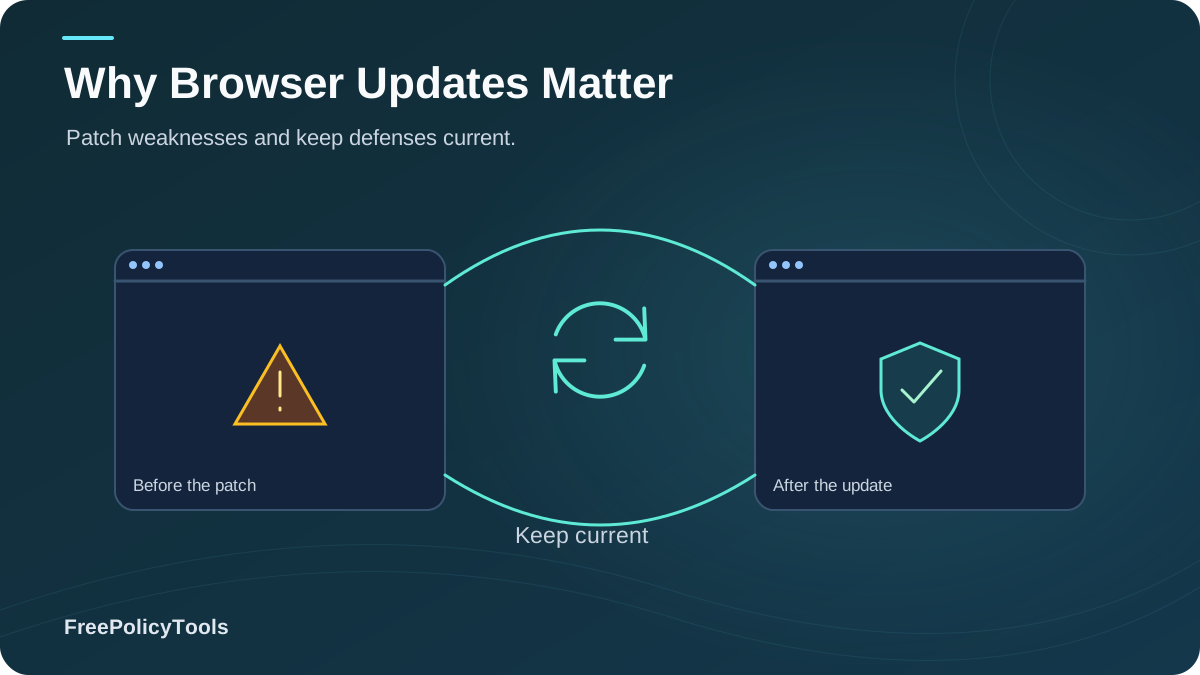
In an era where cyber threats evolve at an unprecedented pace, keeping your browser updated isn't just a recommendation—it's a critical security imperative. Every day, millions of users browse the web with outdated browsers, unknowingly exposing themselves to known vulnerabilities that attackers actively exploit. The statistics are alarming: 42% of all browser-based attacks target outdated software, making browser updates one of the simplest yet most effective security measures you can implement.
Browser updates do far more than add new features or improve performance. They patch critical security holes, fix zero-day vulnerabilities, and protect you from sophisticated attack vectors that could compromise your personal data, financial information, and digital identity. This comprehensive guide explores why browser updates matter, the risks of running outdated software, and how to ensure you're always protected with the latest security patches. Chrome’s update instructions explains how to check for an update and relaunch the browser to apply it.
Understanding Browser Security Vulnerabilities
Browsers are complex software applications that process millions of lines of code from countless websites daily. This complexity, combined with the need to render diverse web content, makes browsers prime targets for cyber attackers. Understanding the nature of browser vulnerabilities helps explain why regular updates are non-negotiable for security.
Common Browser Vulnerability Types
- Remote Code Execution (RCE): Allows attackers to run malicious code on your device through the browser
- Memory Corruption: Buffer overflows and use-after-free bugs that can crash browsers or enable exploitation
- Cross-Site Scripting (XSS): Injects malicious scripts into trusted websites
- Sandbox Escapes: Breaks out of browser security isolation to access your system
- Information Disclosure: Leaks sensitive data like passwords, cookies, or browsing history
- Zero-Day Vulnerabilities: Previously unknown flaws actively exploited before patches exist
According to the National Vulnerability Database, browser-related vulnerabilities have increased by 120% since 2019, with critical-severity flaws rising even faster. Each unpatched vulnerability represents a potential entry point for attackers to compromise your system, steal data, or install malware.
Why Browser Updates Are Critical for Security
Browser updates serve multiple critical security functions that go far beyond adding new features or improving performance. Understanding these functions reveals why delaying or ignoring updates puts you at significant risk.
Security Patches
Updates fix known vulnerabilities that attackers actively exploit. Security researchers and ethical hackers constantly discover flaws, and browser vendors rush to patch them before malicious actors can weaponize them.
Enhanced Encryption
Updates implement the latest encryption standards and protocols, protecting your data in transit. As encryption algorithms become obsolete or compromised, browsers must evolve to maintain secure connections.
Zero-Day Protection
When zero-day vulnerabilities are discovered (flaws being actively exploited), browser vendors release emergency updates. Installing these immediately is crucial to avoid becoming a victim.
Security Feature Improvements
Updates add new security features like enhanced sandboxing, improved phishing detection, better password management, and stronger privacy controls that protect against evolving threats.
The Patch Gap Danger
The time between vulnerability discovery and patch deployment is called the "patch gap." During this window, attackers race to exploit the flaw before users update. Here's how major browsers compare:
- Chrome: Average 7 days to patch critical vulnerabilities
- Firefox: Average 9 days
- Safari: Average 14 days
- Edge: Average 8 days
Browser Update Statistics & Trends
The data clearly demonstrates the critical importance of browser updates. These statistics reveal the scale of the threat and the effectiveness of timely patching.
Of browser attacks target outdated software
Of users have auto-updates enabled
Vulnerabilities discovered in 2024
Critical severity flaws in 2024
Average time to patch critical bugs
Users running browsers >30 days outdated
Key Findings from 2024 Research
- Users who delay updates by more than 7 days are 3.4x more likely to experience a security incident
- Organizations with automated browser updates report 78% fewer browser-related security breaches
- 89% of exploited vulnerabilities had patches available at the time of attack
- Mobile browser users are 2.1x less likely to keep browsers updated compared to desktop users
Sources: Google Security Blog, Mozilla Security Report 2024, Verizon Data Breach Investigations Report
Risks of Running Outdated Browsers
The consequences of running outdated browser software extend far beyond missing out on new features. Outdated browsers expose you to a wide range of serious security threats that can have devastating consequences.
| Risk Category | Potential Impact | Severity | Likelihood |
|---|---|---|---|
| Malware Installation | Complete system compromise, data theft, ransomware | Critical | High |
| Credential Theft | Stolen passwords, account takeover, financial loss | Critical | Very High |
| Data Breach | Personal information exposed, identity theft | High | High |
| Financial Fraud | Unauthorized transactions, banking trojans | Critical | Medium |
| Privacy Violation | Tracking, surveillance, data collection | Medium | Very High |
| Botnet Recruitment | Device used for DDoS attacks, crypto mining | Medium | Medium |
Real-World Attack Examples
Recent incidents demonstrate the real danger of outdated browsers:
- Operation Social Fabric (2024): Attackers exploited outdated Chrome versions to install spyware on 50,000+ devices
- BrowserBomb Campaign: Unpatched Firefox vulnerabilities led to $2.3M in cryptocurrency theft
- Enterprise Breach: Company lost 2TB of sensitive data through outdated Safari exploit
Types of Browser Updates
Not all browser updates are created equal. Understanding the different types helps you prioritize which updates require immediate attention and which can wait.
Security Updates
Critical patches for vulnerabilities
Frequency: As needed (urgent)
Priority: Install immediately
Stability Updates
Bug fixes and crash prevention
Frequency: Every 2-4 weeks
Priority: Install within 1 week
Feature Updates
New functionality and improvements
Frequency: Every 4-6 weeks
Priority: Install within 2 weeks
Update Version Numbering
Browser versions typically follow semantic versioning (e.g., Chrome 127.0.6533.88):
- Major version (127): Significant changes, new features
- Minor version (0): Smaller features, improvements
- Build number (6533): Bug fixes, security patches
- Revision (88): Hotfixes, emergency patches
Best Practices for Browser Updates
Following these best practices ensures you maintain optimal browser security while minimizing disruption to your workflow.
Essential Update Practices
- Enable automatic updates: This is the single most effective step you can take. Auto-updates ensure you receive security patches immediately without manual intervention.
- Update all browsers: Don't just update your primary browser. Update all browsers installed on your system, as attackers target the weakest link.
- Check for updates manually: Even with auto-updates enabled, manually check weekly to ensure updates are installing correctly.
- Restart your browser: Many updates require a restart to take effect. Don't postpone restarts indefinitely.
- Update browser extensions: Outdated extensions can introduce vulnerabilities. Keep all extensions updated or remove unused ones.
- Enable security features: Turn on enhanced protection, safe browsing, and phishing/malware detection features.
- Monitor update notifications: Pay attention to update prompts, especially emergency security updates.
Do's
- ✓ Enable automatic updates
- ✓ Restart browser after updates
- ✓ Update operating system too
- ✓ Use reputable browsers only
- ✓ Remove unused extensions
- ✓ Check update status regularly
- ✓ Read security advisories
Don'ts
- ✗ Disable automatic updates
- ✗ Postpone updates indefinitely
- ✗ Use outdated browser versions
- ✗ Download browsers from unofficial sources
- ✗ Ignore security warnings
- ✗ Keep unnecessary extensions
- ✗ Use end-of-life browsers
Auto-Update vs Manual Updates
The debate between automatic and manual browser updates often centers on control versus convenience. However, from a security perspective, the choice is clear.
| Feature | Auto-Update | Manual Update |
|---|---|---|
| Security Patch Speed | Immediate (0-24 hours) | Delayed (days to weeks) |
| User Effort Required | None | Regular manual checks needed |
| Protection Gap | Minimal | Significant risk window |
| Consistency | Always current | Often forgotten |
| Control | Limited | Full control over timing |
| Bandwidth Management | Background updates | User-controlled downloads |
| Enterprise Compatibility | May need testing | Can test before deploying |
How to Enable Auto-Updates
Most modern browsers have auto-updates enabled by default, but here's how to verify:
When Manual Updates Make Sense
While auto-updates are best for most users, manual updates may be appropriate for: enterprise environments requiring testing, critical systems needing change control, users with limited bandwidth, or developers testing compatibility. However, even in these cases, updates should be applied within 48 hours of security releases.
Enterprise Browser Management
For organizations, browser update management requires a more sophisticated approach. Enterprise environments must balance security with compatibility, testing, and user productivity.
Enterprise Challenges
- • Legacy application compatibility
- • Testing requirements before deployment
- • Bandwidth management across locations
- • Compliance and audit requirements
- • User productivity concerns
- • Multiple browser versions in use
Enterprise Solutions
- • Centralized update management
- • Staged rollout procedures
- • Extended Stable Channel (Chrome)
- • Enterprise policies and GPOs
- • Automated testing frameworks
- • Browser isolation technologies
Best Practices for IT Teams
- Implement browser update policies with 7-day maximum delay for security patches
- Use browser management tools (Chrome Enterprise, Firefox ESR)
- Maintain test environments for compatibility validation
- Monitor browser versions across the organization
- Provide clear communication about update schedules
- Consider browser isolation for high-risk users
- Document and audit browser compliance regularly
Frequently Asked Questions
How often should I update my browser?
You should update your browser as soon as updates are available, ideally within 24-48 hours for security updates. Enable automatic updates to ensure you never miss critical patches. For non-security updates, installing within one week is acceptable.
Will browser updates slow down my computer?
Modern browser updates are designed to minimize performance impact. In fact, updates often include performance improvements that make your browser faster. The temporary slowdown during installation (usually 1-2 minutes) is far outweighed by the security benefits.
Can I update my browser without losing my data?
Yes, browser updates preserve all your data including bookmarks, passwords, history, and extensions. Updates only replace the browser application files, not your user data. However, it's always good practice to sync your browser to the cloud as a backup.
What happens if I don't update my browser?
Without updates, your browser becomes increasingly vulnerable to security exploits. You'll miss critical security patches, making you a target for malware, phishing, and data theft. Eventually, websites may stop supporting your outdated browser version, limiting functionality.
Do I need to update all my browsers or just my main one?
You should update all browsers installed on your system. Attackers target the weakest browser, not necessarily your primary one. Even browsers you rarely use can be exploited through malicious websites or extensions.
Why do browsers update so frequently?
Browsers update frequently because: 1) New security vulnerabilities are discovered regularly, 2) Web standards evolve rapidly, 3) New features are constantly being developed, 4) Performance improvements are ongoing. This rapid update cycle is essential for security in today's threat landscape.
Related Resources
Conclusion
Browser updates are not optional—they are a fundamental security requirement in today's digital landscape. With 687 vulnerabilities discovered in 2024 alone and 42% of browser attacks targeting outdated software, the evidence is overwhelming: keeping your browser updated is one of the most effective security measures you can take.
The risks of running outdated browsers are severe and real. From malware installation and credential theft to complete system compromise and financial fraud, the consequences can be devastating. Yet the solution is remarkably simple: enable automatic updates and ensure they install promptly.
Remember that browser security is not just about protecting your device—it's about safeguarding your digital identity, financial information, and personal privacy. Every day you delay an update is a day you're exposed to known vulnerabilities that attackers are actively exploiting.
Key Takeaways
- • 42% of attacks target outdated browsers
- • 687 vulnerabilities discovered in 2024
- • 7-day average patch time for critical bugs
- • 78% fewer breaches with auto-updates
- • 89% of exploits had patches available
Action Items
- • Enable automatic browser updates today
- • Update all browsers, not just your primary
- • Restart browsers after updates
- • Remove unused extensions
- • Check for updates weekly
Ready to enhance your browser security?
Try Incogniton anti-detect browser with automatic security updates and advanced privacy protection.