How VPNs Work: A Beginner's Guide to Virtual Private Networks
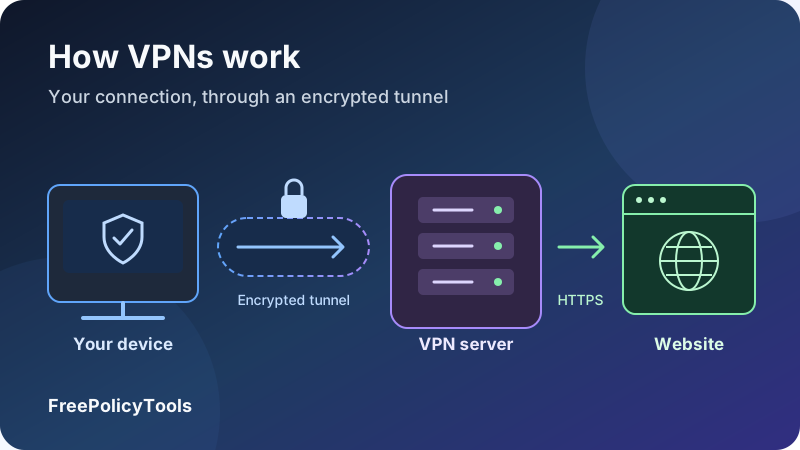
A virtual private network, or VPN, creates an encrypted connection between your device and a VPN server. Traffic routed through that connection travels to the server before continuing to its destination. For everyday consumer VPN browsing, websites see the VPN server’s public IP address rather than the public IP address of your home or mobile connection.
Understanding how VPNs work means separating three ideas: encrypting traffic across a network, changing its route and deciding whom to trust. This guide explains each part in ordinary language, walks through a website visit, and shows how protocols, privacy settings and connection tests fit together. You will also learn where the VPN tunnel ends and why HTTPS still matters.
Encrypt
Protect traffic inside the tunnel
Route
Send selected traffic via a server
IP address
Use the server’s public address
Trust
Evaluate the VPN operator
What Is a VPN?
A VPN is a way to connect devices or networks through a private logical connection carried over another network, often the public internet. “Virtual” means the connection does not require a dedicated physical cable between you and the server. “Private” describes the controlled connection and its protections; it does not mean nobody can identify you.
A consumer VPN usually consists of an app, an account and a choice of servers. The app creates a virtual network interface on your device and changes routing rules so selected packets enter the tunnel. A packet is a small unit of network data with addressing information that tells equipment where to send it.
Your internet service provider, or ISP, still carries those encrypted packets to the VPN server. The VPN does not replace your broadband connection or cellular plan. If the underlying connection stops working, the VPN cannot keep you online by itself.
VPN explained for beginners: a protected first leg
Imagine putting a delivery inside a locked container addressed to a forwarding service. The local carrier sees the forwarding service’s address, but cannot read what is inside. The forwarding service opens the outer container and sends the delivery onward. HTTPS adds its own protection for the website communication, which the forwarding service normally cannot open.
A VPN server and a website server have different jobs
The VPN server handles your tunnel and forwards traffic. The website server hosts the page or application you are accessing. A consumer VPN does not move the website into its own network, and changing your VPN server does not change who operates your email account, shopping site or cloud storage.
A business VPN may instead connect you to private company resources, such as an internal application or file server. Its purpose can be controlled remote access rather than browsing through a different country. For that distinction, see our guide to business VPNs and zero-trust access.
How VPNs Work, Step by Step
Consider opening an HTTPS website while a full-device consumer VPN is connected. The exact implementation differs by app and operating system, but the following sequence describes the main functions. Some steps happen together or repeat as keys and connections are refreshed.
- The app prepares a connection. You choose a server or accept an automatic selection. The app needs ordinary internet access to reach that server. Signing into the commercial service establishes account access; the tunnel’s cryptographic authentication is a separate technical function.
- The endpoints establish trust and encryption keys. The protocol authenticates the relevant peers and sets up cryptographic material. Depending on the protocol, this can involve certificates, public keys and key exchange. The goal is to communicate with the intended endpoint and protect packets in transit.
- Your device installs routing and DNS settings. Routing determines which traffic enters the virtual interface. DNS turns a name such as a website domain into an IP address. A privacy-focused full tunnel normally carries those lookups through the VPN too, subject to app and browser settings.
- Your browser creates the website connection. For HTTPS, the browser and website negotiate their own TLS encryption. The browser’s requests become network packets that are then carried inside the separate VPN tunnel.
- The VPN app encrypts and wraps the packets. The outer packets are addressed to the VPN server. Your router and ISP deliver them there without needing to see the inner website request.
- The server removes the VPN wrapper and forwards traffic. In a typical consumer service, address translation lets the outgoing request use the server’s public IP. The HTTPS data remains encrypted for the website, even though the VPN’s outer encryption has ended.
- The reply follows the reverse path. The website replies to the VPN server. The server sends the returning packets through the encrypted tunnel to your device, where the VPN app unwraps them and the browser processes the HTTPS response.
Your device → VPN server
The VPN tunnel protects routed traffic across your local network and ISP.
VPN server → website
The VPN wrapper ends. HTTPS continues to protect the website connection.
Website → your device
Replies travel back through the VPN server and encrypted tunnel.
What changes when you disconnect?
Ordinarily, the device restores its normal routes and traffic uses the underlying connection directly. Websites then see your usual public IP address again. A kill switch may deliberately block traffic instead until the VPN reconnects or you change the blocking setting. The app’s behavior during an unexpected failure can differ from its behavior after you intentionally disconnect.
The answer to “how does a VPN work?” is therefore more than “it hides your IP.” It creates an authenticated tunnel, changes routing and forwards traffic through another endpoint. Those functions must work together for the intended protection to hold.
Encryption, Tunneling and HTTPS: Three Different Concepts
Encryption changes readable data into ciphertext that requires the appropriate keys to recover. Secure VPN protocols also authenticate packets so altered or forged traffic can be rejected. Strong algorithms matter, but so do correct configuration, key handling, updated software and endpoint security.
Tunneling means carrying one packet inside another
Encapsulation gives an inner packet an outer wrapper that can travel to a tunnel endpoint. Tunneling by itself does not necessarily provide encryption; a secure VPN combines tunneling with cryptographic protection. Cloudflare’s explanation of network tunneling illustrates this distinction. Our VPN encryption guide covers the terminology in more depth.
HTTPS protects a different span of the journey
HTTPS uses Transport Layer Security, or TLS, to protect communication between your browser and the website endpoint. It normally protects request contents, credentials and responses against intermediaries. The browser also checks the website certificate. MDN’s TLS documentation explains these protections.
| Connection | Protected span | Important boundary |
|---|---|---|
| HTTPS without a VPN | Browser to the website’s TLS endpoint | Network observers still have some addressing and traffic metadata. |
| VPN with HTTPS | VPN: device to VPN server; HTTPS: browser to website | The VPN operator can see routing metadata, but normally not HTTPS contents. |
| VPN with plain HTTP | Device to VPN server only | After VPN termination, HTTP contents can be read or changed by relevant intermediaries. |
| End-to-end encrypted messaging | Between the participating messaging endpoints, as designed by the app | Its message encryption is separate from any VPN connection. |
A VPN does not make an HTTP website secure
Do not submit sensitive information to a plain HTTP page because you have enabled a VPN. The tunnel ends at the VPN server. Keep HTTPS enabled and investigate certificate warnings instead of clicking through them.
Encryption is not the same as trustworthy content
A fraudulent site can use HTTPS, and a dangerous download can arrive through a well-encrypted VPN. Encryption protects the transport of data; it does not certify that the person asking for your password is legitimate. Check the domain and use a password manager that recognizes the correct login site.
Who Can See What When You Use a VPN?
Privacy depends on the traffic path and the observer. The table below assumes a correctly configured consumer full tunnel, no routing leaks, a trustworthy device and a normally validated HTTPS connection. Split-tunnel exclusions, corporate inspection and compromised devices can change the picture.
| Observer | What they can generally see | What the VPN does not reveal to them by itself |
|---|---|---|
| Local Wi-Fi operator | A connection to a VPN endpoint, timing and data volume; local network/device information | The website traffic carried inside the encrypted tunnel. |
| Internet provider | Your subscriber connection and the VPN endpoint, timing and data volume | The inner destination requests carried by a correctly configured tunnel. |
| VPN operator | Your source connection, outgoing destination IPs and traffic metadata; DNS names if it handles the queries | Normally, HTTPS passwords, full URL paths and page contents. |
| Website or app service | The VPN exit IP, your requests, submitted information, cookies and logged-in identity | Your original public IP merely from the tunneled connection, assuming no separate leak. |
| An observer beyond the VPN server | Destination IPs, timing and size; potentially domain information | Normally, HTTPS application contents. Plain HTTP has different exposure. |
| Your device or an authorized administrator | Information allowed by browser, operating system, installed tools and management policies | A VPN does not remove local history, endpoint monitoring or account records. |
A different public IP is not a different identity
Logging into the same account tells that service who you are, regardless of the IP it sees. Cookies can recognize a returning browser. Browser fingerprinting uses combinations of characteristics such as platform, display properties and other signals. Learn more in does a VPN change your browser fingerprint?
Location is also more complicated than an IP lookup. A website may request location access, an app may use GPS, and an account may have a stored country. An IP database can be outdated or label a virtual server differently from its physical location. The location displayed by one test is evidence about that database’s classification, not proof that every service will agree.
The VPN provider becomes part of your trust model
You are choosing a new intermediary for traffic the ISP would otherwise deliver directly. The Electronic Frontier Foundation’s VPN selection guide emphasizes provider trust, realistic claims and privacy limitations. Read our explanation of VPN logging policies to distinguish browsing logs from operational, billing and support records.
Encrypted DNS and encrypted ClientHello, where supported, can reduce certain domain disclosures on ordinary HTTPS connections. They do not hide every destination IP or traffic pattern. Avoid assuming either that all observers see every domain or that encryption removes all metadata.
Consumer, Remote-Access and Site-to-Site VPNs
The same broad tunneling idea serves different purposes. A commercial privacy app, an employer’s remote-access client and a connection between offices can all be VPNs, but they do not give the same access or privacy expectations.
| Type | What it connects | Typical use | What to remember |
|---|---|---|---|
| Consumer VPN | Your device to a provider’s server | Route internet traffic through another public IP | The provider is an intermediary; app scope and exclusions matter. |
| Remote-access VPN | An individual device to a private network | Reach company or home services while away | Access depends on authorization; administrators may monitor relevant activity. |
| Site-to-site VPN | One network gateway to another | Connect offices or network environments | Gateway rules decide which network traffic crosses the tunnel. |
| Self-hosted VPN | Your device to a server you control | Access home resources or use a controlled exit | You maintain the server; a single exit IP may be easy to associate with you. |
A work VPN is not a personal privacy service
A company may route only internal application traffic through its network, or it may route internet traffic as well. Managed devices can have additional security software and trusted certificates that support inspection. Follow the employer’s configuration and policies; a personal VPN does not grant permission to bypass access controls or remove device management.
Device apps, extensions and routers have different coverage
A supported device VPN can route traffic from multiple applications. A browser extension often covers only browser requests, although some extensions control a companion VPN app. A router tunnel can cover selected devices behind the router, including devices without their own VPN client, but router processing power and firmware capabilities can limit speed and features.
A router VPN also does not automatically protect a phone after it leaves home and switches to cellular data. Coverage follows the actual route. For remote working scenarios, our guide to VPNs for remote teams discusses access needs that differ from ordinary personal browsing.
Common VPN Protocols Explained
A VPN protocol defines how endpoints establish and carry a protected connection. It affects compatibility, performance and configuration choices. There is no single protocol name that proves an entire service is safe: the software implementation and the operator’s practices also matter.
| Protocol | How it is commonly used | Useful characteristics | Practical qualification |
|---|---|---|---|
| WireGuard | Modern device and network tunnels, commonly over UDP | A relatively small design with a defined cryptographic suite | Account management and privacy behavior depend on the surrounding service. |
| OpenVPN | Configurable TLS-based VPN connections over UDP or TCP | Broad deployment and flexible networking options | Performance and security depend on configuration; TCP can suffer extra retransmission delays. |
| IKEv2/IPsec | IPsec tunnels negotiated using IKEv2 | Supported implementations can handle network changes with MOBIKE | Availability and roaming behavior depend on the platform and configuration. |
| Provider-specific protocols | Customized implementations or wrappers offered by a service | May add integration, transport or obfuscation features | Check technical documentation rather than judging the marketing name. |
WireGuard: a focused tunnel design
WireGuard’s official documentation describes a UDP-based tunnel using modern cryptography and “cryptokey routing,” which associates peer public keys with allowed tunnel IP addresses. The protocol supplies the tunnel; a commercial app supplies account workflows, server discovery and additional privacy controls.
OpenVPN: flexible transport and configuration
OpenVPN’s protocol documentation describes separate control and data channels. TLS protects the control channel used for authentication and key negotiation, while the data channel carries tunnel traffic. UDP is often suitable for everyday use. TCP can work in some networks where UDP is restricted, although overlapping retransmission mechanisms can hurt performance.
Start with the app’s supported automatic setting
For a beginner, an up-to-date app’s automatic selection is usually a practical starting point. Try another supported modern protocol when diagnosing connection failures or performance problems. Do not select obsolete PPTP simply because it appears in an old tutorial. Our guide to common VPN protocols and WireGuard versus OpenVPN comparison expand on these choices.
Protocol, provider and app are separate choices
A recognizable protocol does not establish that the service avoids logging or that its app handles every network transition correctly. Evaluate all three: the tunnel design, the software on your device and the organization running the servers.
Kill Switches, DNS and Split Tunneling
The features surrounding a tunnel often determine how useful it is in daily life. Check what each setting does on your exact operating system. Feature names are not standardized, and the same provider may offer different behavior across desktop, mobile and router products.
Kill switch: blocking an unintended direct connection
If a tunnel fails, the operating system might otherwise use its ordinary internet route. A kill switch attempts to stop that fallback. Some products block all internet access outside a tunnel, while others react only to an unexpected disconnect or close selected applications. Read how VPN kill switches work and test reconnection, sleep/wake and network changes.
DNS protection: where name lookups travel
A DNS leak occurs when relevant lookups use an unintended route or resolver outside the intended VPN protection. Your page requests may use the VPN while DNS takes another path. Browser secure-DNS settings can select a separate resolver; that is not automatically a network leak if the connection to that resolver still travels through the tunnel. Distinguish resolver ownership from routing exposure. See DNS leaks and prevention.
IPv6 and WebRTC: test every relevant address path
IPv4 and IPv6 are different versions of IP addressing. A VPN should handle IPv6 appropriately, whether by tunneling it or deliberately blocking it when unsupported. WebRTC enables browser features such as real-time calls and may expose address information depending on the browser and setup. A local private address is not the same finding as an exposed public ISP address. Our WebRTC and IPv6 leak guide explains the distinction.
Split tunneling: choosing what enters the VPN
Full tunneling routes the intended general internet traffic through the VPN. Split tunneling sends selected apps or destinations through it and lets others connect directly. This can help with a local printer, a work application or a service that dislikes VPN exit addresses. The direct traffic does not gain the VPN tunnel’s protection, even if HTTPS still protects its contents.
An inclusion mode means only selected traffic enters the tunnel. An exclusion mode means selected traffic bypasses it. Check the rule direction before adding an app. The split tunneling versus full tunneling guide discusses these tradeoffs.
Obfuscation and multi-hop: specialized additions
Obfuscation changes how VPN traffic appears on the network to make certain kinds of detection harder. It does not guarantee access on every restricted network. Multi-hop routes traffic through more than one VPN endpoint; its benefits depend on how the hops are operated, and extra routing can add delay. Begin with a reliable ordinary connection, then enable specialized features for a defined reason.
Affiliate disclosure: we may earn a commission if you purchase through this link.
Explore NordVPN’s PlansWhen a VPN Can Help
A VPN is useful when its routing and network protections match a specific need. Start with what you want to accomplish, then choose the connection type and settings. That is more informative than treating a VPN as a universal requirement for every online activity.
Reduce local network visibility
A correctly routed tunnel limits what the Wi-Fi operator or ISP can inspect about the traffic inside it, while leaving connection timing and volume visible.
Use a different internet exit
A consumer service can change the public IP a destination sees. This may affect IP-based location and some network access restrictions.
Reach a private network
An authorized remote-access VPN can connect you to internal company or home resources that are not publicly exposed.
Keep a consistent routing setup
Automatic connection can preserve the chosen traffic path as you move between supported networks, provided reconnection and blocking features work as expected.
Public Wi-Fi: understand the extra layer
Modern HTTPS already protects the contents of most web connections on public Wi-Fi. A VPN can add a tunnel that reduces local visibility of destinations and covers supported traffic from other applications. Continue checking login domains and keeping the device updated. A captive portal may need to be completed before the tunnel can connect.
Travel and access: location changes have limits
A VPN may help you use a familiar exit region while traveling, but banking, shopping and streaming systems can also consider account details or block shared server IPs. Changing an IP-based location does not guarantee access. Our VPN travel guide explains practical device and connectivity considerations.
Rules governing VPN use vary by location and context, and service terms can impose access restrictions. Check the applicable current requirements before relying on a VPN in a restricted setting. A successful connection is a technical result, not a determination of permission.
What a VPN Does Not Protect Against
A VPN changes the path and exposure of network traffic. It does not repair an infected device, prevent every scam or erase the information you give to a service. Understanding those boundaries helps you put effort into the protections that actually address the problem.
Phishing and fraudulent websites
A scam page can use HTTPS and load through a VPN. Check the domain, be cautious with unexpected requests and use phishing-resistant authentication where available.
Malware and unsafe downloads
The tunnel can transport a malicious file just as it transports a harmless one. Keep the operating system and apps updated and evaluate downloads independently.
Account-based identification
A service still knows the identity of an account you sign into. A new IP does not disconnect that session from the account’s history.
Cookies and browser fingerprints
A VPN does not automatically delete tracking identifiers or change the browser characteristics sites can measure. Use appropriate browser privacy controls.
GPS and device permissions
Apps can obtain location through permitted device APIs or other signals. Review location access rather than expecting IP routing to control it.
Compromised endpoints and local records
Information can be read before encryption or after decryption on an infected device. Browser history, screenshots and saved files are outside the VPN’s transport protection.
Every outage or restriction
A VPN server can fail, a network can block the connection and a destination can reject the exit IP. There is no universal access guarantee.
Keep the other security layers in place
Use unique passwords, multifactor authentication, automatic security updates and HTTPS. Apply browser tracking controls where useful and limit app permissions to what you need. These tools address different risks. A VPN can complement them, but the presence of a tunnel is not evidence that the rest of the device is secure.
A shared exit IP can reduce the usefulness of an IP address as an identifier, but it can also bring CAPTCHAs or blocks caused by other users’ activity. A dedicated IP can help with allowlisting and consistency while making that address less shared. Select it for a concrete access need rather than assuming it always increases privacy.
VPN Speed and Latency: Practical Charts
A VPN adds another endpoint to your route and extra processing to the connection. The result depends on server distance, internet routing, congestion, protocol, device capabilities and the destination itself. A nearby server often offers a sensible starting point, but geographic proximity is not a guarantee of the best network path.
Throughput, latency and jitter measure different things
Throughput is the rate at which useful data arrives, usually measured in megabits per second, or Mbps. Latency is the time a packet takes to travel; ping tests commonly report round-trip time in milliseconds. Jitter is variation in delay. Downloads benefit from throughput, while games and calls are sensitive to latency, jitter and packet loss.
All three charts below use invented teaching examples
These values are illustrative, not measured benchmarks, provider rankings or predictions for your connection. They demonstrate how to interpret different metrics. The accompanying tables provide the same example values in accessible text.
Bar chart: extra routing can add delay
| Route | Round-trip time | How to read it |
|---|---|---|
| Direct connection | 20 ms | The reference route in this example. |
| Nearby VPN server | 35 ms | 15 ms more round-trip delay than the reference. |
| Distant VPN server | 95 ms | 75 ms more round-trip delay than the reference. |
Line chart: compare repeated throughput trials
| Trial | Direct download | VPN download |
|---|---|---|
| A | 200 Mbps | 180 Mbps |
| B | 195 Mbps | 175 Mbps |
| C | 205 Mbps | 185 Mbps |
| Average | 200 Mbps | 180 Mbps |
To calculate a reduction, subtract the VPN result from the direct result, divide by the direct result and multiply by 100. Here, (200 − 180) ÷ 200 × 100 = 10%. Do not confuse a 10% throughput reduction with a 10% increase in latency; they describe different measurements.
Donut chart: split tunneling divides traffic paths
| Path | Requests out of ten | Protection boundary |
|---|---|---|
| Through VPN | 6 (60%) | Covered by the tunnel to the VPN server. |
| Direct | 4 (40%) | Outside the VPN tunnel; HTTPS can still protect application contents. |
Run your own comparison under similar conditions
Keep the device, local network and speed-test endpoint the same. Pause other large transfers and compare several direct and VPN trials close together. Record download, upload and ping separately. Then try a different VPN server or supported protocol. A single unusually fast or slow run is weak evidence of normal performance.
Our VPN Speed Checker can help you investigate connection performance. Use the VPN speed and latency guide to understand why a server can deliver good download speeds while still feeling slow during interactive tasks.
Routing through a VPN occasionally improves a poor direct path or changes how a network treats particular traffic, but that outcome is situation-specific. A VPN cannot create bandwidth that the underlying access connection does not have.
VPN vs Proxy, Tor and HTTPS
Several tools can change aspects of internet privacy, but they operate at different layers. Comparing their actual coverage helps you choose one for a specific purpose. You can also combine tools, although combinations can add complexity and do not automatically provide more protection.
| Tool | Primary function | Common coverage | Main limitation |
|---|---|---|---|
| VPN | Encrypted tunnel to a selected endpoint and controlled routing | Device or network traffic selected by configuration | The operator is a trusted intermediary; tracking and endpoint risks remain. |
| Proxy | Forward requests through another server | The applications configured to use it | Encryption and DNS behavior vary; other apps may connect directly. |
| Tor Browser | Route browser traffic through multiple relays and reduce browser identification | Activity inside Tor Browser | Often slower; account logins and user behavior can still identify you. |
| HTTPS | Encrypt and authenticate the connection to a website | Each supported website connection | Does not replace your public IP or hide all network metadata. |
| Private/incognito browsing | Reduce persistence of certain local browser session data | That browser’s private session | Does not create a VPN tunnel or hide activity from the destination. |
A proxy is not automatically an encrypted device tunnel
A proxy can make a destination see the proxy’s IP, but that alone says nothing about encryption between your app and the proxy. Some proxy connections are protected, and HTTPS can independently protect destination contents. Check the protocol and app settings. See VPN versus proxy and our broader VPN, proxy and browser comparison.
Tor solves a different routing problem
Tor distributes a connection across relays rather than relying on one ordinary VPN exit service to see both your incoming connection and outgoing destinations. Its privacy goals and browser design differ from those of a consumer VPN. It still requires careful behavior: signing into an identifying account identifies you to that service. Our Tor versus VPN guide explores practical tradeoffs.
Private browsing mainly changes local storage behavior
A private browser window can help avoid leaving normal session history on a shared device, subject to browser behavior and any monitoring software. It does not make requests invisible to the service you visit. Treat local privacy, transport encryption and traffic routing as separate decisions.
How to Choose a VPN as a Beginner
Start with your use case and the devices you need to support. For general consumer privacy, prioritize a transparent operator, maintained apps, reliable routing controls and clear cancellation terms. For access to work resources, use the service and configuration your organization authorizes.
| Check | What to look for | Question to ask |
|---|---|---|
| Ownership and transparency | An identifiable operator, clear policies and accessible support | Who runs the service and who can access its systems? |
| Data practices | Specific statements about browsing, connection, account and diagnostic records | What is collected, retained and shared? |
| Audit evidence | Available scope, findings and remediation information | Did the review cover the app, infrastructure or a narrower claim? |
| Device support | Maintained apps for your actual platforms | Are kill switch, split tunneling and IPv6 handling supported here? |
| Protocols and updates | Supported modern protocols and a maintained release process | Can I keep the app updated without manual workarounds? |
| Server suitability | Routes useful for your destinations and needs | Does it perform well on my connection rather than someone else’s? |
| Commercial terms | Clear renewal, refund, cancellation and device-limit rules | What will I pay after any introductory term? |
Read “no logs” claims carefully
A provider may distinguish browsing history from connection metadata and account records. Identify the categories, retention periods and optional diagnostics rather than treating a short slogan as the full policy. An audit is evidence about the reviewed systems and period, not a permanent guarantee about all future behavior.
Judge free services by their operation and funding
A transparent free tier may be funded by paid subscriptions and impose server, data or speed limits. An unfamiliar app may have a different business model. Price does not settle the question. Our guide to whether free VPNs are safe explains what to investigate.
Try the service on your actual devices
Check ordinary browsing, video calls, sleep/wake, Wi-Fi-to-mobile changes and the apps you use daily. Review platform-specific documentation before assuming every advertised feature exists on your device. Use our VPN Comparison Tool to organize options, then verify current details with the provider.
Evaluate an option against the checklist
Our NordVPN review is one place to explore a commercial service. Compare its current platform support, privacy documentation and terms against your needs before subscribing. No provider choice removes the limitations explained in this guide.
Affiliate disclosure: we may earn a commission if you purchase through this link.
Explore NordVPN’s PlansHow to Set Up and Test Your VPN
For most beginners, a maintained official app is easier to configure than manually entering tunnel settings. The labels differ between products, but the following workflow helps you verify the actual connection rather than relying only on a green status icon.
- Install the genuine app. Use the provider’s official website or its verified app-store listing. Confirm the developer identity and avoid lookalike downloads. Update the operating system and app before testing.
- Sign in and approve the VPN configuration. Supported systems ask permission to create a VPN connection. Review the request and follow the provider’s setup instructions. A work device may require administrator-managed installation.
- Begin with automatic protocol selection and a nearby server. This gives you a simple baseline. You can select another supported protocol or exit region after checking that ordinary connectivity works.
- Review kill switch and automatic connection settings. Understand whether blocking applies before connection, after failure and after manual disconnect. Confirm what happens on networks you mark as trusted.
- Review DNS, IPv6 and split-tunnel behavior. For an initial full-tunnel test, remove deliberate bypass rules. Do not change multiple advanced settings at once; otherwise it becomes difficult to identify which setting caused a problem.
- Compare the public IP before and after connection. The ordinary consumer VPN result should show an exit address different from your direct connection. A country label is secondary and may vary by lookup database.
- Test relevant leak paths. Compare DNS resolver results and inspect IPv4, IPv6 and WebRTC behavior. Investigate any result showing your original public address or an unintended direct DNS path.
- Check reconnection and performance. Try sleep/wake and a controlled network transition, then compare several speed trials. Run disruption tests with non-sensitive traffic and ensure you know how to restore access.
Know what a test can establish
An IP check shows the address seen by that test endpoint for that request. It does not verify every app, every network transition or the provider’s logging policy. A DNS test may show several resolver addresses, which can belong to distributed infrastructure. Investigate who operates them and how requests reach them before calling the result a leak.
Our IP Address Checker helps with the public-address comparison, and the IP Leak Test can help inspect browser-related address exposure. The VPN testing guide provides a more systematic checklist.
A connected indicator is a starting point
Confirm the exit IP and intended traffic coverage. Repeat important checks after changing protocols, adding split-tunnel rules or switching between device and router configurations. A working browser session does not prove that every application follows the same route.
Keep a small record of useful settings
Note the app version, protocol, server region and any exclusions that work well. If a later change causes trouble, this gives you a known reference. Never publish configuration files containing private keys, authentication tokens or account credentials when asking for support.
Common VPN Problems and Fixes
Troubleshoot one variable at a time. Start by checking whether the underlying connection works, then identify whether the problem affects the tunnel, all internet access or one particular application. A carefully configured kill switch can intentionally block traffic, so an outage after disconnection is not always an app failure.
| Symptom | Possible explanation | A useful next check |
|---|---|---|
| VPN will not connect | Captive portal, blocked transport, unavailable server or authentication issue | Complete the network login, confirm account access and try another supported server/protocol. |
| No internet after a disconnect | Kill switch or always-on blocking remains active | Reconnect or deliberately adjust the documented blocking setting when appropriate. |
| Everything feels slow | Congested route, distant server, device limits or another transfer | Pause large transfers and compare a nearby server under similar conditions. |
| One website rejects access | Exit-IP blocking, an account-region rule or fraud checks | Try another server and review the service’s access requirements. |
| Local printer or network device is unavailable | Local-network blocking or routing conflict | Review local-network permissions and use a narrowly scoped exception if needed. |
| Calls or games perform poorly | High latency, jitter, packet loss or an unsuitable route | Test a closer server and record latency separately from download speed. |
| Original public IP appears in a test | Split-tunnel bypass, IPv6/WebRTC exposure or an inactive tunnel | Check the tested app’s route and the VPN’s platform-specific leak protections. |
| Connection drops on network changes | Roaming, sleep behavior or reconnection limitations | Update the app and review automatic reconnect and supported protocol settings. |
Avoid solving every problem by removing protection
If a particular service fails, inspect its error message and try another appropriate VPN server first. A split-tunnel exception can restore access when you deliberately want direct routing, but understand the exposure of the excluded traffic. Disabling the kill switch without checking why it blocked traffic can defeat the behavior you originally wanted.
Ask support with reproducible details
Provide your operating system, app version, protocol, server region, approximate symptoms and whether other sites work. Remove sensitive identifiers from screenshots and follow the provider’s instructions for diagnostic logs. Our VPN troubleshooting guide can help structure the investigation.
Putting Your VPN Knowledge into Practice
A VPN works by creating an encrypted tunnel, routing selected traffic through it and forwarding that traffic from another endpoint. For a consumer service, that usually changes the public IP websites see and limits what the local network and ISP can inspect inside the tunnel. HTTPS continues to protect the website communication beyond the VPN server.
Choose the right type of VPN for your purpose, understand the operator’s role, and test the connection on your actual devices. Pay attention to DNS, IPv6, kill switch behavior and any split-tunnel exclusions. Keep ordinary security protections in place, because routing privacy is only one part of staying safe online.
Your first practical checklist
Start with an updated official app, a supported modern protocol and a nearby server. Confirm the public IP, check relevant leak paths, test reconnect behavior and compare performance. Add advanced features only when you understand the problem they are meant to solve.
Affiliate disclosure: we may earn a commission if you purchase through this link.
Explore NordVPN’s Plans