VPN Troubleshooting: How to Fix Common Connection and Speed Issues
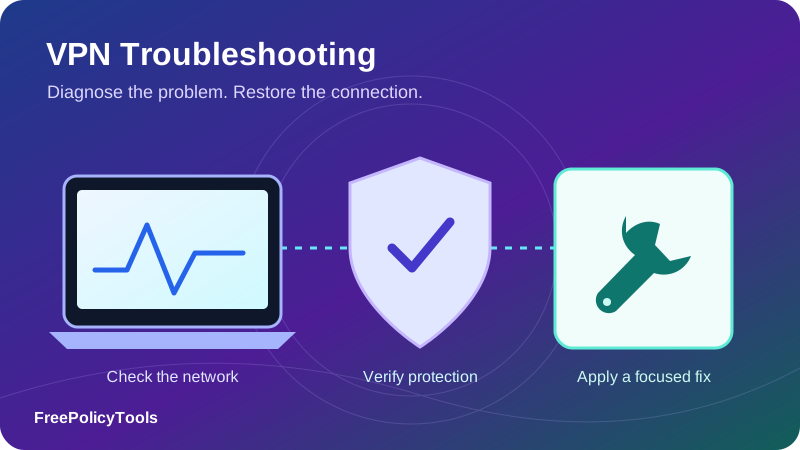
VPN troubleshooting works best when you separate a connection failure from a DNS problem, a slow route or a website restriction. If your VPN will not connect, keeps dropping or connects without usable internet, a few controlled comparisons can identify the right next step.
This guide explains how to fix VPN connection issues and speed problems across everyday devices. It includes symptom tables, platform-specific checks, optional read-only diagnostics and a support-report template, with a final verification step to ensure the fix preserves your intended protection.
Isolate
Identify the failing layer
Compare
Change one variable at a time
Repair
Use supported narrow changes
Verify
Retest access and protection
VPN Troubleshooting: Start With These Checks
The fastest useful fix starts with identifying which layer failed. A VPN depends on a working internet connection, a usable account, a running client, a reachable server and correct routing. “VPN not working” can mean failure at any of those layers, or simply a website refusing the VPN’s public address.
- Record the symptom. Note the exact error, whether the app connects, and whether the problem affects every website or one application.
- Check ordinary connectivity. With sensitive activity paused, test the network without the VPN. Account for any kill switch that intentionally blocks disconnected access.
- Check account and service status. Confirm the correct account, subscription or access entitlement, device limits and any published outage.
- Try another nearby server. Retest the same activity before changing another setting.
- Use the current supported client. Update from the provider’s official source and restart the app or device if appropriate.
- Test a supported alternate protocol. Use the client’s automatic mode or another documented option, then check connectivity and leaks again.
- Compare another device or network. This helps separate a local client problem from a network restriction or provider issue.
Change one variable at a time
Keep a short record of the original setting, the change and the result. A successful connection is more useful when you know which change produced it and have verified that the intended protection remains active.
NordVPN’s Windows connection guidance illustrates several of these checks, including updates, alternate servers, protocol selection and comparisons across devices or networks. Exact menus and supported options vary by provider and platform.
Affiliate link: we may earn a commission. Compare current features, then test the settings on your own devices and networks.
Match the Symptom to the Most Useful Next Test
Do not apply a network reset to every VPN problem. First decide whether the tunnel cannot establish, it establishes but carries no usable traffic, or it works with poor performance. A blocked service and a broken network also require different responses.
| Symptom | Possible explanation | First useful test |
|---|---|---|
| Stuck on Connecting | Unreachable gateway, protocol interference or client problem | Try another server, then a supported protocol or network. |
| Authentication failed | Incorrect credentials, expired entitlement or certificate problem | Check the account and read the exact authentication error. |
| Connected, but nothing loads | DNS failure, route problem, strict blocking or filter conflict | Separate name resolution from an HTTPS connection test. |
| Only one website fails | Exit-address blocking, site outage or app-specific configuration | Check other destinations and another VPN exit. |
| Slow downloads | Congestion, path length, weak local link or device limit | Measure the non-VPN baseline under comparable conditions. |
| Frequent disconnects | Network transitions, power management or unstable path | Test stationary use and record when each drop happens. |
| Internet stops after disconnecting | Kill-switch policy or a stale route / filter | Read the blocking mode before changing network settings. |
| Printer or local server unavailable | LAN blocking, route overlap or local DNS mismatch | Check local-network permissions and the destination route. |
For the underlying path, read how VPNs work. Distinguishing the device-to-gateway tunnel from gateway-to-website access makes the symptom easier to interpret.
Check the Internet Connection and Captive Portal First
A VPN cannot repair an offline access network. If ordinary browsing also fails, check whether the device is connected to the intended Wi-Fi, Ethernet or mobile network, whether other devices work, and whether the router or access provider reports an outage.
Account for intentional blocking
A strict kill switch can keep internet access blocked when the VPN is disconnected. That result does not show that the underlying network is broken. Pause sensitive activity, use the client’s documented way to permit a baseline check if needed, and restore the protection afterward.
Complete required network sign-in
Hotel, airport and guest networks may require a captive-portal login before allowing normal internet access. Open the network’s sign-in prompt or documented portal and complete the permitted access step. A tunnel that cannot reach its gateway before sign-in may connect normally afterward.
Do not bypass certificate warnings or enter VPN credentials into an unfamiliar network portal. A portal grants local network access; it should not need your VPN account password. Once ordinary access works, reconnect and verify the expected route.
Compare Wi-Fi and a separate authorized network
If the VPN works on a mobile hotspot but fails on the original Wi-Fi, focus on that Wi-Fi’s path, filtering or router behavior. If ordinary internet access is slow on both connections, investigate the underlying service or device before attributing the entire slowdown to encryption.
VPN Not Connecting: Fix the Tunnel Establishment Problem
When the app stays on Connecting or reports a handshake timeout, record the selected server and protocol. Try another gateway without changing everything else. One gateway failing while others work suggests an endpoint or path issue rather than a universal account failure.
Use current software and a supported protocol
Install the supported client and restart its connection using the provider’s documented process. If automatic protocol selection fails, test another available protocol. Availability depends on the client, device and service; an old article may recommend an option no longer offered.
Our guide to VPN protocols explains common choices. Where supported, a TCP-based transport may work on a network that interferes with UDP, but it can change latency and throughput. A protocol change is a diagnostic experiment, not proof that one protocol is always better.
Separate network restrictions from client faults
Try the same device on another authorized network, then another device on the original network. If both devices fail only on one network, consult the network owner about permitted VPN access. If one device fails everywhere while another works, inspect the client, local filters and account state on the failing device.
Provider-supported obfuscation can address some traffic-classification problems where its use is permitted. It is not a general repair for bad credentials or broken DNS, and successful connectivity does not establish local legal permission. Review VPN legality when relevant.
Fix Authentication, Certificate and Account Errors
Authentication errors require different checks from a timeout. Verify that you are signing into the intended account, that access remains active, and that any multi-factor prompt or organization-specific approval has completed. Avoid repeatedly retrying a password that may trigger account lockout.
App passwords and manual credentials may differ
Some services issue separate credentials or tokens for manual connections. A website login password may not be valid in an imported VPN profile. Check the provider’s current setup instructions and replace an obsolete profile through its supported process.
Check time and certificate details
A substantially incorrect device clock can interfere with time-sensitive authentication or certificate validity checks. Enable the appropriate automatic date and time settings, then retry. For a certificate error, inspect the hostname, validity and issuer information with the provider or administrator.
Do not solve a certificate failure by turning off validation or importing a root certificate from an unverified troubleshooting post. Corporate VPN certificates and identity requirements should be repaired by the organization responsible for them.
Check device and session limits
If the account has a documented simultaneous-session limit, end unused sessions using the provider’s supported controls. A limit error is not evidence of a routing problem. Keep subscription, account and server errors distinct in your troubleshooting notes.
VPN Connected but No Internet: Separate DNS From Routing
The app can report a tunnel while websites remain unreachable. Determine whether the problem is name resolution, establishing a connection to a destination, or a particular application. A single failed ping does not identify the cause: many destinations or networks restrict ICMP.
Try several destinations and applications
Test more than one permitted HTTPS site. If one app fails while a browser works, examine that app’s proxy, split-tunnel and endpoint configuration. If every destination fails only with the VPN, inspect resolver settings, routes and client diagnostics.
Use read-only diagnostics where appropriate
The commands below are optional examples for your own device. They inspect resolution or a connection attempt; they do not reset networking. Replace the example destination with an authorized one relevant to the issue. A terminal may follow a different route from a browser under per-app rules.
Windows PowerShell: test a TCP connection to an example HTTPS endpoint
Test-NetConnection -ComputerName example.com -Port 443

Windows / macOS / Linux, where nslookup is installed:
nslookup example.com

macOS / Linux, where curl is installed:
curl -I --connect-timeout 10 https://example.com/

Compare the same request with and without the intended VPN route.
A timeout or rejected HEAD request alone does not identify the cause.
Do not disable certificate verification to force a successful result.
A successful lookup shows that the resolver used by that tool answered. It does not prove every app uses that resolver or that the query remained inside the tunnel. A successful TCP connection shows reachability to that endpoint and port, not an entire website’s health or VPN security.
Restore supported DNS and routing settings rather than making random global changes. If you use a managed network, private domain names may require the organization’s DNS and route configuration.
Fix DNS Problems Without Creating a New Leak
DNS trouble can produce failed lookups, slow initial page loads or access to public sites while private company names fail. Begin with the VPN’s documented resolver configuration and record custom DNS, browser secure DNS and filtering features.
Review custom DNS and browser settings
A browser’s DNS-over-HTTPS setting can use a different resolver from the operating system. That difference may be intentional, but it can affect private-domain resolution or conflict with your desired resolver policy. Test the browser and system path separately before changing either one.
Changing to a public resolver is not a universal fix. It may break organization-only names, bypass a filtering policy or alter which party sees queried names. Use a supported configuration and check both functionality and routing afterward.
Distinguish stale answers from reachability failures
A stale cache can preserve an obsolete answer, but clearing it will not repair an unreachable resolver or incorrect tunnel route. Start by reconnecting with the supported configuration. If diagnostics identify stale local answers, use the operating system’s documented cache-clearing method.
Run a fresh DNS leak check after the fix. Multiple resolver addresses do not automatically mean a leak, and a test that produces no resolver observation is incomplete. Our VPN testing guide explains those limits.
Fix Slow VPN Speeds With a Fair Baseline Comparison
Measure before changing settings. Use the same device, network and test destination, pause background transfers and collect at least three trials in each condition. Compare medians for VPN-off and VPN-on throughput rather than selecting the best result from either group.
Improve the local connection first
Weak Wi-Fi, interference, congestion and a struggling router can limit both conditions. Where practical, compare Ethernet or a stronger Wi-Fi position. If the baseline is already poor, a different VPN server cannot restore bandwidth the access link does not provide.
Compare nearby servers and supported protocols
A geographically nearby exit often shortens the path, but congestion and peering can make another server perform better. Test a small number of nearby options and record the destination used by the benchmark. Automatic speed-test endpoint changes can distort the comparison.
Review optional features such as multi-hop and obfuscation. They may add processing or a longer route; keep them enabled when your needs require them, but account for the trade-off. Mullvad’s connection-speed guidance discusses server choices, alternate networks and advanced settings. Options in that guide apply to its supported configurations.
Look for a device or router limit
Compare the VPN on a capable device with a router-level tunnel when possible. Processing limits, adapter drivers, power modes and other active filters can influence throughput. Our guides to speed and latency and multi-hop routing explain these factors.
No single slowdown percentage establishes that a VPN is broken or unsafe. Judge the result against the baseline and the requirements of calls, downloads or other tasks.
Affiliate link: we may earn a commission. Compare current features, then test the settings on your own devices and networks.
Example Measurements: Evaluate a Troubleshooting Change
The following invented results show how to document improvement. They do not represent a real provider, a customer survey or a guaranteed outcome. In an actual test, record which one setting changed and keep the other conditions comparable.
| Condition | Trials (Mbps) | Median | Baseline retained |
|---|---|---|---|
| VPN off baseline | 96, 100, 104 | 100 Mbps | 100% |
| VPN on before change | 28, 30, 32 | 30 Mbps | 30% |
| VPN on after change | 76, 80, 84 | 80 Mbps | 80% |
Illustrative Median Download
Illustrative Latency Across Trials
Throughput rises by 50 Mbps between the example VPN conditions. That is a 50-percentage-point gain in baseline retention, a different measure from percentage growth in throughput. Use units and formulas explicitly rather than calling every improvement “50% faster.”
Run the leak and recovery checks again after the change. A speed gain that comes from unintentionally bypassing the tunnel is not a successful VPN fix.
Stop Frequent Disconnects and Sleep-Resume Failures
Record when drops occur: during stationary use, after idle time, after closing the laptop lid, while switching networks or during heavy transfers. Timing helps distinguish an unstable path from client lifecycle or power-management behavior.
Compare stationary and transition behavior
Test on a stable network first, then repeat a controlled sleep-resume or Wi-Fi-to-mobile transition. A connection that fails only during transitions needs different investigation from one that drops repeatedly without a network change.
Review automatic reconnection and the selected blocking mode. A kill switch may correctly stop traffic while the app recovers; the recovery delay and the protection result should be recorded separately. Read kill-switch behavior before treating every temporary loss of internet as a defect.
Check supported power and background settings
Mobile battery management may affect some clients’ background operation. Review the app’s supported settings and permissions rather than broadly disabling power controls. On laptops, inspect adapter power management and driver updates when the underlying network also fails after resume.
Repeated tunnel resets can also be path- or endpoint-specific. Compare another server and supported protocol, then provide time-stamped diagnostic information if the pattern persists.
Fix Problems With One Website, Streaming Service or App
If ordinary browsing works while one site refuses access, the tunnel may be healthy. Check the site’s service status, the exact error and whether another permitted destination works. A shared VPN exit can trigger abuse controls, geographic restrictions or additional account verification.
Separate site restrictions from network failures
Try another VPN exit supported for your permitted use. If the issue follows a particular exit, its reputation or route may be involved. If it follows one app across exits, inspect that app’s configuration, account state and filtering interactions.
A private browsing window can help distinguish existing cookies from a fresh session, but it does not make the connection anonymous or remove platform terms. A certificate warning is a separate problem and should not be dismissed as ordinary VPN blocking.
Check app-specific routing
With split tunneling, a browser and another app can use different routes. Confirm the expected inclusion or exclusion, including resolver behavior. Our guide to split versus full tunneling explains the distinction.
Respect service access conditions. A VPN cannot guarantee access to every catalogue or website, and changing an exit is not permission to disregard account restrictions. Read VPN limitations for the broader context.
Resolve Firewall, Security-Software and Adapter Conflicts
Endpoint security, another VPN client, a browser proxy or an old network filter can interfere with the connection. Start with supported exclusions and the relevant logs. Identify which program blocked which process or endpoint rather than disabling every protection.
Use precise, supported changes
If security software identifies the official client as blocked, follow the vendor’s instructions for a narrowly scoped exception. On managed devices, coordinate with the administrator. Keep existing protections active where possible and restore any diagnostic change promptly.
Most consumer clients initiate outbound connections. Router port forwarding is therefore not a default fix for a VPN that cannot connect. Do not open unsolicited inbound ports or place a device in a router’s DMZ based on a generic troubleshooting list.
Repair before reinstalling
A supported repair operation can restore client components without deleting every network configuration. If a clean reinstall is warranted, save necessary settings, download from the official source and follow the current removal procedure. An organization-issued profile should be restored through its administrator.
Do not randomly delete virtual adapters, remove management profiles or run registry-cleaning commands. Network components may serve another legitimate connection, and a broad change can make the original fault harder to isolate.
Platform-Specific VPN Troubleshooting
Windows
Check whether the underlying adapter works, whether the client service reports an error and whether a recent driver or client update changed behavior. Use the supported repair route for a damaged tunnel adapter. Microsoft’s Windows connectivity guidance treats network reset as a later step and notes that VPN or other networking software may need reinstalling afterward.
For Windows 11, the reset option is under Settings → Network & internet → Advanced network settings → Network reset. Save the settings you need before using it, expect a restart, and coordinate managed-device changes. Reset is not the first response to one blocked website.
macOS, iPhone and iPad
Look for other VPNs, content filters or third-party security software that might affect the path. Apple’s network-connectivity troubleshooting advice recommends checking these interactions and consulting the software developer or administrator where appropriate. Removing the visible app alone may not resolve every configuration.
Follow the current provider instructions for permissions, profiles and supported network extensions. Keep managed configurations under administrator control. A network-settings reset can remove saved connectivity settings and should follow simpler checks, with a plan to restore access.
Android
Review VPN permissions, the selected VPN app, background-operation guidance and blocking settings. Android’s VPN documentation distinguishes always-on connection management from the separate option that blocks connections without VPN. A configured block can explain why browsing stops while the tunnel is unavailable.
Test Wi-Fi and mobile data separately, then test transitions. Feature availability and exceptions depend on the app, device and management policy; verify actual behavior instead of assuming every Android device has identical controls.
Linux
Use the provider’s supported client or distribution-specific network configuration. Inspect service status, resolver integration and route tables using tools appropriate to that installation. Commands for one distribution’s resolver or firewall manager may not apply to another.
If you recently changed firewall rules, network management or an imported profile, compare with the saved original configuration. Avoid layering multiple managers over the same tunnel without understanding which one owns its routes and DNS.
Router VPNs, Local Access and Advanced MTU Problems
A router-level VPN can affect several devices at once. Compare whether the problem occurs on every client behind the router and whether a direct device connection behaves differently. Check that firmware, profile and VPN configuration are supported for the router’s model.
Local printers and private networks
Local access can fail because a VPN blocks LAN traffic, a private destination overlaps with a tunnel route, or the required local DNS is unavailable. A simple subnet overlap is different from a security policy that intentionally denies local access.
Inspect the documented LAN-access setting and destination route. For corporate networks, ask the administrator to resolve overlapping address space or missing routes rather than broadly excluding private networks from protection.
Pages that partly load can suggest a path-size problem
MTU is the maximum packet size an interface carries without the fragmentation behavior applicable to that path. VPN encapsulation adds overhead. A path-MTU problem can produce stalls where small exchanges work but larger transfers fail; that symptom is a clue, not a diagnosis.
If simpler checks fail, test a provider-supported MTU adjustment on the tunnel, record the original value and restore it if it does not help. There is no universal optimal MTU for every provider and network. Avoid changing every interface or assuming a value copied from another setup is correct.
Our guide to server types helps distinguish service infrastructure from your router’s local configuration. Keep advanced changes tied to a reproducible symptom.
Verify the Fix Before You Declare Success
Repeat the same activity that failed, then verify the route. A page loading after a change is insufficient if the browser is now unintentionally outside the VPN. Check public IPv4, supported IPv6, DNS and relevant WebRTC observations against the intended configuration.
- Confirm the app connects with the expected server and protocol.
- Run fresh public-address and resolver checks for the applications you use.
- Test the original symptom repeatedly under comparable conditions.
- Check sleep, reconnect or network switching when those events caused the issue.
- Verify the intended kill-switch behavior and restore protection settings changed for diagnostics.
- Keep incomplete tests labelled not verified instead of assuming a clean result.
Our step-by-step VPN testing guide covers the procedure, and the IP Leak Test can help collect raw browser observations. Scores and missing measurements should not replace interpretation of the actual addresses and resolver results.
Build a Useful Support Report and Know When to Escalate
Escalate when a current supported client fails across suitable servers and networks, when a managed profile needs repair, or when you can reproduce a routing or recovery defect. A compact comparison record helps support avoid repeating steps you have already tested.
VPN TROUBLESHOOTING REPORT
Date / time and time zone:
Device / operating-system version:
VPN client version and installation source:
Network type and access provider:
VPN server / protocol:
Kill-switch, DNS and split-tunnel settings:

SYMPTOM
Exact error message:
Does the app connect?
All destinations or one site / app?
Started after an update or configuration change?

CONTROLLED COMPARISONS
Ordinary network access without VPN:
Another VPN server:
Another supported protocol:
Same device on another authorized network:
Another device on the original network:

CHANGES AND EVIDENCE
One setting changed:
Result of repeating the original task:
Repeated baseline / VPN performance measurements:
Address, DNS and recovery checks after the change:
Settings restored:
Unverified scenarios:

SUPPORT ATTACHMENTS
Relevant redacted log excerpt:
Reproduction steps:
Do not include passwords, recovery codes or private keys.
Share the minimum diagnostic information needed
Include time stamps, exact errors and reproducible steps. Logs can contain account identifiers, addresses, private hostnames or other details. Share them through the provider’s official support channel, redact unrelated information and never include passwords, recovery codes or private keys.
A support team may request a more complete diagnostic file. Review what it collects and keep organization data within the approved process. Do not publish an unredacted packet capture to a forum.
When does changing providers make sense?
Compare alternatives when the service lacks a feature your device or network needs, support cannot resolve a reproducible problem, or reliability remains poor after fair tests. Switching companies cannot necessarily solve an unstable access network or an organization’s policy restriction.
Review logging disclosures and free VPN safety alongside connectivity. A convenient replacement still needs appropriate privacy and security practices.
Restore Connectivity With a Repeatable Troubleshooting Process
To fix VPN connection issues, isolate the failure before resetting settings. Check the underlying network and account, compare servers and supported protocols, then investigate DNS, routing, client conflicts and platform-specific behavior. For speed problems, use repeated measurements against a fair baseline.
Keep changes narrow and reversible, retest the original symptom and confirm that the intended tunnel protection remains in place. If the fault persists, give support a clear record of the affected device, networks, errors and tests. This makes VPN troubleshooting faster and the resulting fix easier to trust.
Affiliate link: we may earn a commission. Compare current features, then test the settings on your own devices and networks.