How to Set Up a Proxy Server on Windows and Mac (Step-by-Step)
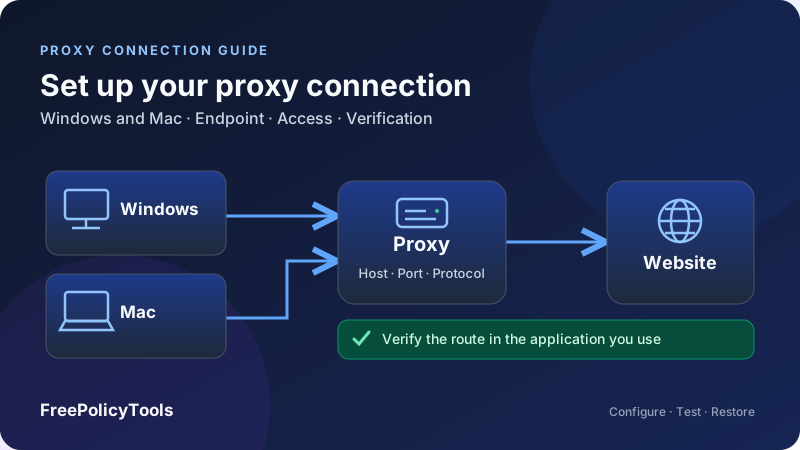
To set up a proxy server on Windows or Mac for everyday browsing, you usually configure your computer to use an existing proxy endpoint. You need the correct server address, port, protocol and authentication details. Entering those values changes the path for applications that honor the setting; it does not automatically route every app or install a new server.
This step-by-step guide covers manual Windows and macOS settings, automatic configuration scripts, browser-specific options, authentication, verification and troubleshooting. It also explains the difference between configuring a proxy client and hosting your own proxy, so you can choose the right instructions and reverse a change cleanly.
Endpoint
Server, port and protocol
Access
Credentials or approved IP
Scope
System settings or one app
Verify
Test the route and rollback
Configure a Proxy Client or Host a Proxy Server?
A proxy forwards supported connections between a client and a destination. The client needs to know where to send those connections. The server needs to be running, reachable and willing to accept them. Both parts matter, but they are different setup tasks.
Using an existing proxy
If your company, school or provider supplied a host and port, the Windows and Mac steps below are the relevant starting point. They configure cooperating applications to use that endpoint. A provider may instead supply a PAC address or its own application, in which case use the documented configuration method.
Hosting your own proxy
If you want your computer to become the server, you need appropriate proxy software and an access-control design before editing client settings. The operating system’s outbound proxy panel does not start a listener. A later section explains the additional requirements without assuming that a public open proxy is the desired result.
| What you have | Task | Where to start |
|---|---|---|
| Provider or organization host and port | Configure a proxy client | Manual Windows or Mac instructions |
| Approved PAC URL | Configure automatic proxy selection | Automatic configuration section |
| SOCKS endpoint for one app | Configure a compatible application | Browser or command-line examples |
| Local proxy software already running | Point a client at the local listener | Use its documented address and protocol |
| No server or endpoint yet | Choose or operate a server first | Prerequisites and hosting section |
Read what a proxy server does and forward versus reverse proxies. These desktop instructions concern an outbound client proxy, not a reverse proxy placed in front of your website.
What You Need Before Changing Proxy Settings
Collect the connection details before enabling anything. A wrong protocol or port can produce a timeout, authentication loop or misleading browser error. Save the original settings so you can return to the working configuration.
| Item | Illustrative value | What to confirm |
|---|---|---|
| Server hostname or IP | proxy.example.com | Exact endpoint supplied by the operator |
| Port | 8080 | Provider-assigned port, not a number guessed from the protocol |
| Protocol | HTTP, HTTPS transport or SOCKS5 | What the client and endpoint actually support |
| Authentication | Username/password or approved source IP | The required method and credential format |
| PAC URL, if used | https://config.example.com/proxy.pac | Trusted script location supplied by the administrator |
| Bypass policy | Specific local or internal destinations | Which requests may connect directly |
| Expected exit | Provider or company egress address | Whether the route uses fixed or rotating addresses |
| Scope | One application or system-following applications | Which traffic the setting is supposed to affect |
All example.com addresses in this guide are placeholders. They are not working proxy services. Replace them only with details from your administrator or provider. Ports such as 8080 and 1080 are examples; the port number alone does not identify the server’s protocol.
Check access rules before entering credentials
A proxy may authenticate a username and password, authorize your ordinary outward IP, require a client application or use an organization’s integrated authentication. If it uses IP allowlisting, moving between networks or changing VPN state can change the address it sees.
Use the appropriate configuration authority
A managed device may have enforced settings. If controls are locked or a change is overwritten, inspect the approved policy and ask the administrator rather than editing unrelated registry keys or removing profiles. A personal device gives you more freedom, but saving the original values still makes recovery easier.
Affiliate disclosure: we may earn a commission if you purchase through this link.
Explore IPRoyal’s Proxy OptionsHTTP, HTTPS and SOCKS: Choose the Right Setting
Proxy terminology can describe the protocol used to reach the proxy, the destination traffic it handles or a product label. Resolve that ambiguity before choosing a field. An endpoint that accepts HTTP proxy requests is not interchangeable with a SOCKS endpoint.
HTTP proxies and HTTPS destinations
An HTTP proxy can forward ordinary HTTP requests and, when supported, establish a CONNECT tunnel for an HTTPS destination. In that latter arrangement, the browser normally negotiates TLS with the destination through the relay. Supporting HTTPS websites does not necessarily mean the client-to-proxy transport itself uses TLS.
A TLS-protected proxy hop is a separate property
Some clients support an HTTPS connection to the proxy itself. That protects that hop, while HTTPS to the destination protects a separate application exchange. Confirm support in the specific client and provider. A setting’s name or a website’s padlock is not enough to establish both properties.
SOCKS requires a compatible client
SOCKS relays supported network connections without using the same request format as an HTTP web proxy. DNS behavior, authentication and supported transports depend on the version and implementation. Do not enter a SOCKS-only endpoint into a generic HTTP proxy field and expect it to work.
| Endpoint | Compatible setup | Important distinction |
|---|---|---|
| HTTP forward proxy | System web proxy or an app’s HTTP proxy option | HTTPS destination support may use CONNECT. |
| HTTPS proxy transport | A client that explicitly supports TLS to the proxy | Not equivalent to a field merely covering HTTPS websites. |
| SOCKS5 proxy | A SOCKS-capable app or supported Mac setting | DNS and other traffic support must be checked. |
| PAC configuration | A compatible automatic configuration option | The script selects routes; it is not the proxy server itself. |
See HTTP versus SOCKS proxies and types of proxy servers for a fuller comparison.
Set Up a Proxy Server on Windows: Manual Settings
For the supported Windows interface, follow Microsoft’s proxy setup instructions. Windows 11 uses an edit dialog; Windows 10 presents similar controls directly.
- Open Settings → Network & internet → Proxy.
- Find manual configuration and open its edit controls.
- Enable Use a proxy server.
- Put the hostname or IP in the address box and the supplied port in its separate box.
- Add only approved bypass destinations. Windows separates multiple entries with semicolons.
- Choose the appropriate intranet-bypass behavior.
- Save the change, reopen the affected application and test it.
Automatic Windows options
For an approved PAC URL, edit Use setup script, enable it, enter the script address and save. For network-managed discovery, enable Automatically detect settings when instructed. A Windows VPN connection can have separate proxy settings in its advanced options.
Separate fields are not a combined URL
If the form has an address box and a port box, put the hostname in one and the number in the other. Do not paste a credential-bearing URL into an address-only field. A provider’s combined connection string may be intended for another application.
Do not assume every Windows process follows the setting
Browsers and applications can use different networking libraries, their own proxy preferences or environment variables. A service running under another identity can have a different configuration. If only one app ignores the change, investigate its documented proxy support rather than repeatedly toggling the same Windows switch.
Windows manual proxy is not a universal traffic tunnel
This configuration is a starting point for compatible applications. It is not a VPN kill switch, a guarantee of all-app coverage or a way to create a SOCKS server on the computer.
Configure a Proxy on Mac: Step-by-Step
Apple’s Mac proxy settings guide documents per-network-service settings in the current System Settings interface.
- Open System Settings → Network.
- Select the active service, such as Wi-Fi or Ethernet.
- Open its details, then Proxies.
- Enable Web Proxy (HTTP), Secure Web Proxy (HTTPS) or SOCKS Proxy as required, then enter its server and port.
- If required, enable password authentication and enter the supplied credentials.
- Review bypass destinations; multiple entries use commas.
- Confirm the changes and test the intended app.
For an approved PAC URL, use automatic configuration and enter that address. Use discovery only when the network’s administrator calls for it.
Configure the network service you actually use
A Wi-Fi service and an Ethernet service can have separate configuration. Changing one does not establish what happens after switching to the other. If you use multiple network services, record which ones should follow the proxy and test the relevant transitions.
Match the web option to the required traffic
The Mac web proxy options distinguish web traffic categories, but the label for secure web traffic should not be treated as proof that the proxy hop itself uses TLS. Check the endpoint’s documented protocol and the client’s actual support. When the same endpoint is intended for both web categories, verify that instruction rather than selecting every available proxy option.
Older interface names may differ
Older macOS versions use a different network-preferences layout. Follow the documentation for that version rather than looking for buttons from a newer screenshot. Keep the same conceptual values—service, protocol, server, port, authentication and exceptions—regardless of the layout.
PAC Scripts, Automatic Discovery and Bypass Rules
A proxy auto-configuration file, or PAC file, provides routing decisions to a compatible client. It can direct one destination through a proxy and allow another to connect directly. It does not install a server or supply a device-wide traffic firewall.
A script can intentionally return a direct path
Some scripts include direct access as an exception or fallback. That may be appropriate for an organization’s policy, but it can conflict with a personal expectation that every request must use the proxy. Read the approved behavior instead of assuming a configured script always means a proxied connection.
Use a trusted configuration source
The script influences where supported requests go. Obtain its URL from the responsible operator and confirm that the host is correct. An automatic-discovery option depends on the network environment; it is not a mechanism for finding a trustworthy public proxy for you.
| Method | Who chooses the path? | What to verify |
|---|---|---|
| Manual endpoint | Client settings and explicit exceptions | Correct host, port, protocol and bypass list |
| PAC script | The script’s rules as interpreted by the client | Trusted URL, destination decisions and fallback |
| Network discovery | Network-provided configuration | Approved environment and expected configuration source |
| App override | Application-specific settings | Which setting takes effect and whether policy locks it |
Exceptions are deliberate direct connections
A bypass rule changes coverage. Keep it as narrow as the actual requirement and use the syntax the particular client supports. A wildcard that appears safe in one client may not mean the same thing in another. Do not add a broad pattern simply because an internal site is failing.
Corporate internal names may also depend on company DNS or a VPN. A proxy exception alone does not make them resolve or become reachable. Diagnose name resolution and routing separately.
Proxy Authentication and IP Allowlisting
Authentication establishes whether the proxy accepts your connection. A username and password, source-IP rule and integrated enterprise login are different methods. Use the one supported by the endpoint and application.
A browser prompt may be normal
If the system proxy form does not store credentials, a compatible application may prompt when it first contacts the proxy. Other clients may need their own credential settings or enterprise authentication support. Repeated prompts can indicate a wrong credential, incompatible method or rejected source address.
Provider credentials may have a required structure
Some providers encode a location or session option in the username. Copy the documented format exactly rather than inventing suffixes. A dashboard login is not necessarily the same as the proxy credential. Also distinguish an account password from the separate endpoint authorization details.
Source-IP authorization changes with your network
If the proxy approves an outward IP, verify the address it sees from your current connection. A VPN, mobile hotspot or changed ISP address can alter that source. Do not solve the mismatch by expanding an allowlist to everyone.
| Method | Typical requirement | First check if rejected |
|---|---|---|
| Username/password | Correct proxy-specific credentials and supported auth method | Credential format, endpoint and application support |
| IP allowlist | Approved source address as seen by the proxy | Current network or VPN exit and narrow allowlist |
| Integrated enterprise auth | Supported identity context and network setup | Approved client, signed-in identity and administrator guidance |
| No authentication | An explicitly permitted trusted setup | Access controls and whether the endpoint is intentionally reachable |
Keep passwords out of screenshots, public diagnostics and shared configuration examples. A secure website connection does not necessarily encrypt proxy authentication on the client-to-proxy hop; use a supported protected path when that requirement matters.
Browser Settings: System Proxy or App Override?
A successful system configuration only helps applications that use it. Browsers can follow the operating system’s proxy choice, use their own settings or be controlled by an organization. Check the effective setting before assuming a browser failure means the endpoint is offline.
Chrome, Edge and Safari
For ordinary desktop browsing, start with the system proxy configuration. A browser’s proxy-settings link may open the operating system panel rather than expose a separate endpoint form. An extension, launch option or managed policy can change the effective behavior. Check those influences if one browser behaves differently from another.
Firefox
Firefox offers its own connection options. In Settings, search for “proxy” to find the configuration control for your installed version. Choose the system setting if you want it to follow Windows or Mac. Choose manual configuration only when you intentionally want a separate browser route. Mozilla’s connection-settings guide explains the available modes and exceptions.
For a SOCKS endpoint, select the supported version and check whether hostname lookup is delegated to the proxy. A SOCKS setting and a DNS setting answer different questions. Review any remote-DNS option rather than assuming the default is the same across versions and applications.
| Situation | Meaning | What to inspect |
|---|---|---|
| Browser uses system settings | OS proxy rules are the starting point | Manual values, PAC, discovery and bypasses |
| Browser has a manual override | Its route may differ from the OS | Browser endpoint, protocol, auth and exclusions |
| Proxy extension is enabled | Extension can influence browser connections | Permissions, selected mode and extension configuration |
| Organization manages the browser | Policy can prescribe or lock a route | Policy status and approved administrator instructions |
Test a second browser only after identifying its settings. A browser that is deliberately direct is a useful comparison, but it does not prove that every background application follows either route. See VPN vs. proxy for the difference in application coverage.
Test an Endpoint with curl on Windows and Mac
A command-line test can isolate the endpoint from a browser’s extensions, cache and system configuration. The following examples specify a proxy explicitly. They are diagnostic examples, not commands that install a server or change your computer’s permanent settings.
Replace the reserved example host and port with your authorized endpoint. These examples omit credentials and assume the server accepts your connection through its supported authorization method. They will not authenticate a username/password endpoint automatically.
Windows: explicitly call curl.exe
Use curl.exe so the command identifies the executable rather than a shell alias. If it is unavailable, use your approved installation method or a documented alternative.
curl.exe --proxy http://proxy.example.com:8080 --connect-timeout 10 --max-time 30 --head https://example.com/Mac: test an HTTP proxy explicitly
curl --proxy http://proxy.example.com:8080 --connect-timeout 10 --max-time 30 --head https://example.com/The http:// prefix describes the client’s connection to the proxy. The https:// destination requests an HTTPS website through that proxy, normally using a CONNECT tunnel. Those two schemes describe different hops.
SOCKS: intentionally choose where names resolve
curl --socks5-hostname proxy.example.com:1080 --connect-timeout 10 --max-time 30 --head https://example.com/Use curl.exe for the equivalent Windows command. In curl, --socks5-hostname delegates destination hostname resolution to the SOCKS proxy; --socks5 resolves it locally. The official curl manual documents proxy schemes, authentication and these DNS options.
A successful explicit test does not validate system settings
The timeouts make a failed test finish rather than wait indefinitely. A destination may reject a HEAD request, so an HTTP method error is not automatically a connection failure. Avoid putting passwords in command examples: shell history, logs and process inspection can expose arguments. Use your client’s supported credential handling and redact diagnostic output before sharing it.
Verify the Proxy Route, Not Just the Saved Setting
For measured examples, see our HTTP-client routing experiment and proxy-password encryption study. The consumer portal access investigation adds a separate diagnostic boundary: a proxy may reject a tunnel before the destination receives a request. These studies do not directly test the Windows or Mac settings shown here.
A saved host and port are configuration evidence, not proof that the intended traffic uses the proxy. Verification needs an observed result from the actual app and destination you care about.
- Record a baseline. Before changing settings, record the app, network, outward address and whether the destination works. Avoid mixing a home connection baseline with a later hotspot test.
- Apply the configuration and open a fresh connection. Close and reopen the app if necessary. An already established connection can obscure the effect of a new setting.
- Inspect the outward address through the configured app. Use an approved IP-checking service or an endpoint you control. The expected proxy exit may be shared or may rotate.
- Check a representative destination. Test the site or API you actually need, including its login and downloads where relevant. A working homepage is not a complete application test.
- Check exclusions separately. Confirm that an intentionally bypassed internal service follows the expected direct path. Do not label that deliberate exception a proxy failure.
- Check DNS and address-family behavior. Establish what the client resolves locally and what it delegates. Test the actual supported route rather than assuming all IPv4 and IPv6 traffic is covered.
- Check interruption and recovery. In a controlled session, observe what happens if the endpoint is unavailable, then restore it. A client may show an error or use an allowed fallback.
| Observation | Useful evidence | What remains unproven |
|---|---|---|
| Expected exit address in one browser | That request used an expected outward path | All apps, DNS paths and later requests |
| Explicit curl request succeeds | That endpoint accepts the tested connection | OS settings and browser policy |
| Internal site works through an exception | That exception appears usable | External traffic coverage |
| Proxy outage produces an error | Tested request did not complete normally | Universal blocking of other traffic |
| DNS result matches intended resolver behavior | Name resolution fits the observed test | Other apps, networks or encrypted-DNS policies |
For rotating services, the exit can legitimately change between connections. Persistent sessions, location selection and rotation intervals depend on the service and account configuration. Compare the result with the provider’s documented mode; see proxy chains and rotating proxies for the underlying concepts.
Affiliate disclosure: we may earn a commission if you purchase through this link.
Explore IPRoyal’s Proxy OptionsHTTPS, DNS and the Limits of Proxy Privacy
A proxy changes a connection path. That alone does not specify encryption, anonymity, DNS handling or logging. You need to evaluate each property separately.
HTTPS remains important on both direct and proxied routes
For an ordinary CONNECT tunnel, correctly validated website HTTPS protects the application contents between your client and the website. The proxy still knows your connecting address and can observe the destination requested for the tunnel, timing and traffic volume. Plain HTTP contents do not gain website HTTPS protection merely because they pass through a proxy.
As checked on October 6, 2026, W3Techs reports that 90.2% of websites in its survey use HTTPS by default. Its definition concerns redirecting visitors from HTTP to HTTPS. This is a website-level adoption statistic, not the percentage of all internet traffic encrypted or a measurement of proxy safety. The remaining share does not necessarily mean those sites lack HTTPS support.
A trusted interception certificate changes the model
An organization can operate a proxy that inspects HTTPS using a certificate trusted by managed devices. That differs from an ordinary tunnel. Understand the documented workplace design. For a personal proxy setup, an unexpected certificate installation request deserves investigation before proceeding; do not dismiss browser certificate errors or disable validation as a troubleshooting shortcut.
DNS may take another path
With HTTP proxying, the client commonly sends the destination hostname to the proxy for the forwarded connection. With SOCKS, local versus remote lookup depends on the client and configuration. Browsers may also perform separate lookups or use secure DNS according to their own policy. These details make a single IP-address test insufficient for a DNS conclusion.
Read DNS leaks and prevention alongside WebRTC and IPv6 exposure when investigating traffic outside your intended route. A proxy configuration is not a device-wide VPN with automatic leak protection.
A proxy cannot erase an existing identity
Proxy Setup Charts: Adoption, Checks and Timing
These visuals separate a sourced statistic from two chosen examples. The worksheet and timing samples help organize verification; neither is a survey of providers or a promise about your connection.
Website HTTPS defaults: a sourced adoption statistic
| Category | Share | Interpretation |
|---|---|---|
| HTTPS by default | 90.2% | Reported website adoption of the survey’s redirect behavior |
| Other default behavior | 9.8% | Calculated complement; not proof of absent HTTPS support |
A ten-check setup worksheet
| Category | Count | Checks |
|---|---|---|
| Endpoint | 3 | Correct host, port and supported protocol |
| Authorization | 2 | Correct method and accepted credentials or source address |
| Routing | 3 | Expected exit, deliberate bypasses and intended DNS behavior |
| Recovery | 2 | Observed outage behavior and successful rollback |
Compare repeated requests instead of one impression
| Trial | Direct request | Proxied request |
|---|---|---|
| First | 42 ms | 67 ms |
| Second | 44 ms | 73 ms |
| Third | 41 ms | 69 ms |
For your own comparison, keep the destination, request size, device and network consistent. Record whether connection reuse, DNS caching and TLS setup are included. A geographically distant exit can add delay; caching or a different network route can change the result in either direction. Do not generalize from these invented values.
Troubleshoot Proxy Errors on Windows and Mac
Start with the smallest reproducible failure. Identify the app, endpoint, protocol, authorization method and destination. Change one variable at a time so you know which change helped.
| Symptom | Possible cause | Useful next step |
|---|---|---|
| Connection times out | Unreachable host, blocked port or unavailable listener | Check endpoint spelling, network reachability and server status |
| Connection is refused | No listener on that address/port or active rejection | Confirm the documented port and that the server is running |
| HTTP 407 or repeated login prompt | Proxy authentication required or rejected | Check proxy credentials, supported auth and source-IP rules |
| HTTP 403 | Proxy or destination policy rejects the request | Identify which component returned it; check allowed use and destination rules |
| Browser works; another app fails | Different proxy support or authentication behavior | Inspect the failing application’s documented connection settings |
| curl works; browser fails | Different endpoint, browser override or extension | Compare effective settings and test a fresh browser connection |
| Certificate warning | Trust issue, interception or wrong configuration | Check the expected certificate chain; preserve validation |
| IP address appears unchanged | Bypass, unsupported app, old connection or unexpected exit | Verify the effective route and open a new connection |
| Internal hostname fails | Missing corporate DNS, reachability or correct bypass | Check name resolution and approved network access independently |
| Setup breaks after switching networks | Per-service settings, allowlist or network policy changed | Check the active service and source address before editing credentials |
| Settings keep returning | Managed policy, configuration profile or application changes | Identify the responsible setting or owner rather than repeatedly deleting it |
Read errors at the correct layer
A name-resolution error may concern the proxy host itself or the destination. A timeout can occur before authentication is attempted. A 407 is a proxy authentication response; a 403 requires identifying the responder. Once the proxy successfully forwards a request, the destination can still reject it for its own reasons.
Do not fix an endpoint problem by weakening every setting
Turning off certificate checks, removing authentication or opening a listener to everyone may hide the immediate symptom while creating a separate problem. Fix the address, policy, trust chain or supported authentication method that the evidence points to.
Useful diagnostic
Compare the same endpoint through one explicit client and one system-configured browser, then inspect their differing settings.
Misleading shortcut
Changing hosts, protocols, credentials and bypasses together makes it difficult to determine why a connection succeeds.
Disable or Revert a Proxy Configuration
Record the original state before starting: enabled modes, endpoint, PAC URL and exceptions. A clean rollback restores that known state. It does not mean disabling every network feature indiscriminately.
Windows rollback
Return to Settings → Network & internet → Proxy. Turn off the manual proxy or setup script you enabled, or restore the original values. Restore automatic detection to its previous state rather than treating it as a universal on-or-off recommendation. If you configured a particular VPN connection’s proxy options, restore those separately.
Mac rollback
Return to the active network service’s proxy panel. Disable the specific protocol entries or automatic configuration you added, or restore their original values. Save the change and repeat the check for another service only if you also changed it. Restore exception lists if you edited them.
Remove app-specific overrides separately
System rollback does not necessarily change Firefox’s manual entry, a browser extension, a development tool’s environment variables or a command that explicitly supplies a proxy. Review each layer you touched. Restart the affected app to establish a fresh connection and test the direct or original route.
Verify recovery with the same application
What If You Actually Want to Host a Proxy Server?
Hosting requires server software as well as client configuration. Choose software that supports your required HTTP or SOCKS behavior and operating environment. There is no universal installation command that safely covers every Windows or Mac deployment.
- Define the users and purpose. A local development proxy, a household service and an enterprise gateway need different access rules, capacity and management.
- Install maintained software from its official source. Follow that product’s platform instructions and review its supported authentication and transport options.
- Choose the listening address. Loopback restricts access to the same machine. A LAN address or broader interface can accept other clients subject to firewall and server rules.
- Restrict access before allowing remote clients. Configure appropriate authorization and network controls. Do not expose a public unauthenticated listener as a default setup.
- Plan connectivity and naming. The clients need a reachable address. Router forwarding, remote access and DNS are separate tasks, and may be unnecessary for a local-only server.
- Test with one authorized client. Use the configured listener’s actual protocol, host and port. Check permitted and rejected requests as well as normal browsing.
- Maintain the server. Apply updates, review access records according to your privacy requirements, protect credentials and document shutdown and recovery.
A listener bound only to 127.0.0.1 is reachable through IPv4 loopback on its own machine; typing that address on another computer refers to that other computer. IPv6 loopback is ::1. Confirm which addresses the chosen server actually listens on instead of assuming both families are covered.
A forward proxy for clients and a reverse proxy in front of a website solve different routing problems. Installing the latter does not automatically create an outbound browsing proxy. Refer to reverse proxy vs. forward proxy before selecting the software category.
Choose a Proxy Endpoint That Fits Your Setup
Choose against requirements that you can test: protocol, compatible applications, authentication, destination access, location, session behavior, support and data handling. A label such as residential or datacenter does not establish encryption or universal compatibility.
| Requirement | Question to ask | Why it matters |
|---|---|---|
| Application compatibility | Does the required app support this protocol and auth method? | A valid endpoint can still be unusable in a particular app |
| Network transport | Is the client-to-proxy hop protected when necessary? | Website HTTPS and proxy-hop encryption are separate |
| Exit behavior | Is the address stable, rotating or session-controlled? | Expected verification results and logins can differ |
| Destination access | Are my intended destinations and activities supported? | Connection success does not guarantee destination acceptance |
| Data handling | What connection records are retained and for how long? | Routing through an operator adds a separate trust relationship |
| Operations | Are endpoint details, outage handling and support documented? | You need a maintainable setup and a reliable rollback |
Compare residential and datacenter proxies when the exit network is relevant. If your actual goal is broader device traffic protection, read how VPNs work and split tunneling vs. full tunneling before choosing a system proxy as the solution.
A provider is one way to obtain an endpoint; an organization’s approved gateway or a properly maintained server may be appropriate instead. Evaluate the route and policy you need before selecting a service.
A Reliable Proxy Setup Starts with the Right Endpoint
To configure a proxy on Windows or Mac, first identify the supported endpoint, protocol and authorization method. Enter them in the correct system or application panel, use trusted automatic configuration only when supplied, and keep bypass rules intentional.
Then verify the application’s actual route, DNS behavior and recovery. A proxy setting does not create a server, encrypt every hop or cover every process. With those boundaries clear, you can use an existing proxy confidently, troubleshoot a specific failure and restore your original connection when needed.
Affiliate disclosure: we may earn a commission if you purchase through this link.
Explore IPRoyal’s Proxy Options